> ## Documentation Index
> Fetch the complete documentation index at: https://docs.rallied.ai/llms.txt
> Use this file to discover all available pages before exploring further.
# Chat with your agent
> Get answers, kick off actions, and work tickets side-by-side with your agent from the Rallied dashboard or right inside ConnectWise Manage.
Chat is a direct line to your agent for the times you want to drive the work yourself. Open the **Chat** tab, describe what you want, and the agent works alongside you: it pulls ticket context, drafts replies, runs tools, and pauses for approval whenever a policy requires it. It's the fastest way to hand the agent a task without waiting for a ticket to trigger it.
You can chat with your agent from two places:
* **In Rallied** — a **Chat** tab available on every MSP workspace.
* **Inside ConnectWise Manage** — the same chat, embedded as a pod so your technicians never leave the PSA.
Everything you say, every plan the agent posts back, and every approval you give is scoped to your MSP; a chat opened by one technician cannot see another MSP's tickets or clients.
## Chatting from Rallied
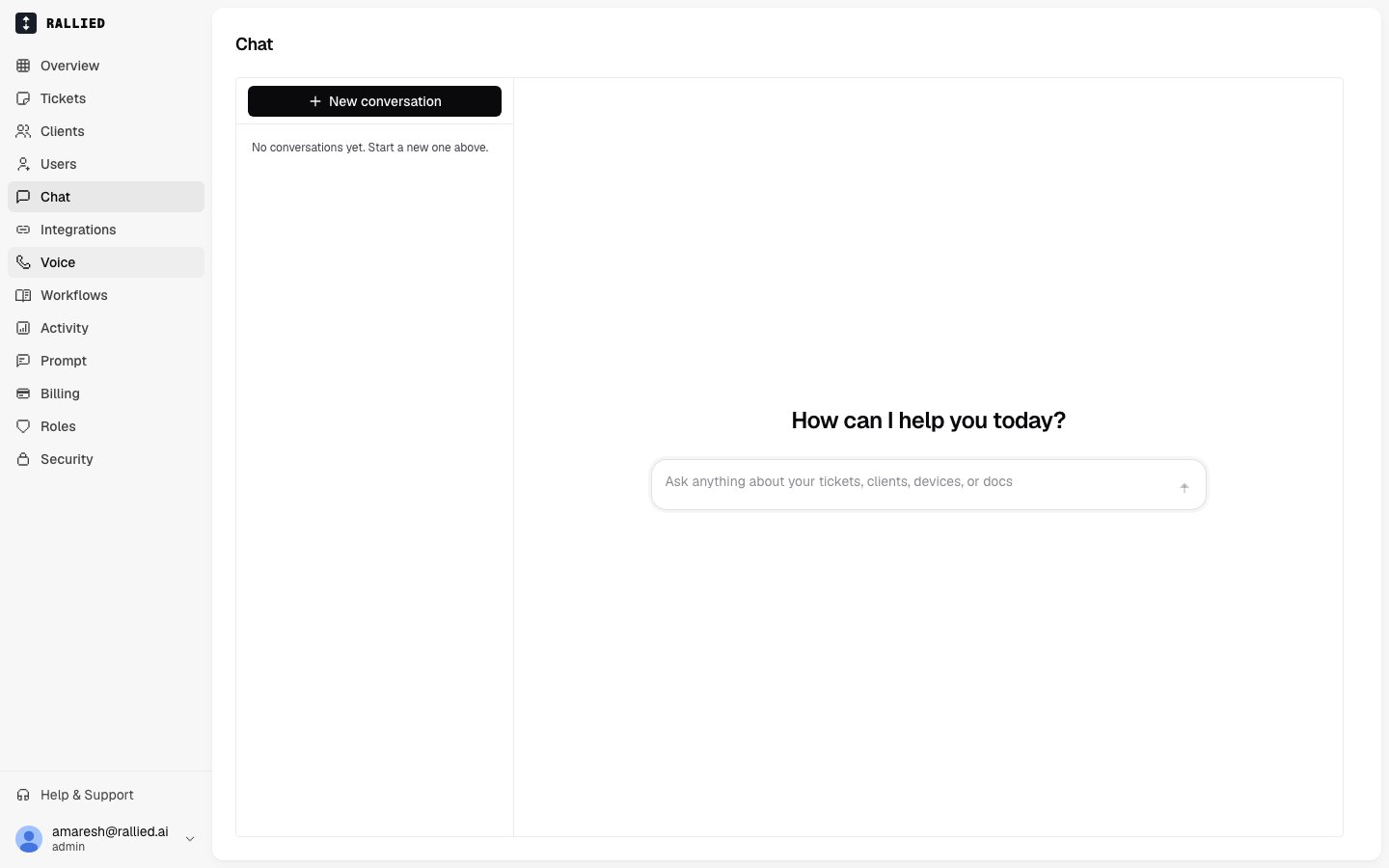
Open your MSP in Rallied and switch to the **Chat** tab. You'll see a threaded chat with a sidebar of past conversations on the left.
 What you can do here:
* **Ask about a ticket** — paste a ticket number or subject and the agent pulls the ticket, its notes, and the customer context.
* **Kick off an action** — "reset Jane's password", "grant Alex access to the finance shared mailbox", "check whether server-03 is up". The agent picks the right tool and posts a plan for your approval when needed.
* **Work an incident together** — walk through diagnosis step by step, with the agent surfacing findings as it goes.
* **Ask questions about your setup** — "which clients don't have MFA enforced?", "what workflows do we have for onboarding?"
Each conversation is a **thread**. Threads are per-technician: your colleagues don't see yours and you don't see theirs. Rename or delete a thread from the sidebar.
The agent respects the same approval settings you've configured for the rest of Rallied. If a tool is set to **Needs approval**, the agent posts its plan and waits for you to reply "yes"/"go ahead"/"no, do X instead" before running it. See [Approval settings](/dashboard/policies).
## Chatting from inside ConnectWise Manage
If you use ConnectWise Manage, you can embed the same chat inside the PSA using ConnectWise's **Hosted API**, with no extra window and no context-switching. Your technician opens a ticket, opens the Rallied pod, and asks the agent to help.
### One-time setup in ConnectWise
In ConnectWise Manage, go to **System → Setup Tables** and open **Hosted API**.
Click **New**. Fill in:
* **Description** — `Rallied`.
* **Screen** — pick the screens you want the pod to appear on (Service Ticket is the most useful).
* **URL** — `https://app.rallied.ai/embed/connectwise`.
* **Origin** — `https://app.rallied.ai`.
Save the entry, then reload ConnectWise Manage. The Rallied pod now shows up in the sidebar of every screen you enabled it on.
### What your technicians see
When a technician opens the pod on a ticket, ConnectWise hands Rallied the ticket ID and the login of the current CW user. From there:
* **Ticket context loads automatically**, with no pasting IDs and no searching. The agent knows which ticket you're on.
* **The chat is scoped to your MSP.** Rallied checks that the ConnectWise instance the pod was loaded from actually belongs to your MSP. If someone pasted the pod URL into a different tenant, the pod blocks the chat instead of leaking anything cross-tenant.
* **Approvals happen inline.** Same plan-and-approve flow as the rest of Rallied.
### When the pod can't open
You may see one of these instead of a chat:
| What you see | What it means | What to do |
| -------------------------------------------- | ------------------------------------------------------------------------------------------ | ------------------------------------------------------------------------------------------------------------------------------------------------------- |
| **ConnectWise isn't connected** | Your MSP hasn't set up the ConnectWise integration in Rallied. | Connect ConnectWise in **Settings → Integrations**. See [ConnectWise Manage](/integrations/connectwise). |
| **This ConnectWise instance doesn't match** | The pod was opened from a different ConnectWise tenant than the one connected to your MSP. | Check that the ConnectWise instance the pod is embedded in is the same one you connected. If you have more than one CW tenant, connect the correct one. |
| **Choose an MSP** **(platform admins only)** | You're a Rallied platform admin and the pod couldn't tell which MSP to load. | Pick the MSP from the list. Regular technicians never see this. |
## Common patterns
* **Working from a ticket** — open the ConnectWise pod, say **"help me work this"**, let the agent pull the customer's setup and suggest next steps.
* **Bulk asks** — from the Chat tab, **"list every ticket about printer issues in the last 48 hours"** or **"who's overdue on onboarding tasks?"**.
* **Running a workflow ad-hoc** — describe the outcome you want ("**offboard Jamie in Contoso**") and let the agent walk through the same steps a matching workflow would run automatically.
## Related
* [Approval settings](/dashboard/policies) — decide which actions the agent runs on its own vs. asks about.
* [Workflows](/dashboard/workflows) — write playbooks that run automatically when matching tickets come in.
* [ConnectWise Manage](/integrations/connectwise) — connect the PSA the pod embeds into.
* [Rallied API](/api/talk) — the same ticket conversation from your own scripts and tools.
What you can do here:
* **Ask about a ticket** — paste a ticket number or subject and the agent pulls the ticket, its notes, and the customer context.
* **Kick off an action** — "reset Jane's password", "grant Alex access to the finance shared mailbox", "check whether server-03 is up". The agent picks the right tool and posts a plan for your approval when needed.
* **Work an incident together** — walk through diagnosis step by step, with the agent surfacing findings as it goes.
* **Ask questions about your setup** — "which clients don't have MFA enforced?", "what workflows do we have for onboarding?"
Each conversation is a **thread**. Threads are per-technician: your colleagues don't see yours and you don't see theirs. Rename or delete a thread from the sidebar.
The agent respects the same approval settings you've configured for the rest of Rallied. If a tool is set to **Needs approval**, the agent posts its plan and waits for you to reply "yes"/"go ahead"/"no, do X instead" before running it. See [Approval settings](/dashboard/policies).
## Chatting from inside ConnectWise Manage
If you use ConnectWise Manage, you can embed the same chat inside the PSA using ConnectWise's **Hosted API**, with no extra window and no context-switching. Your technician opens a ticket, opens the Rallied pod, and asks the agent to help.
### One-time setup in ConnectWise
In ConnectWise Manage, go to **System → Setup Tables** and open **Hosted API**.
Click **New**. Fill in:
* **Description** — `Rallied`.
* **Screen** — pick the screens you want the pod to appear on (Service Ticket is the most useful).
* **URL** — `https://app.rallied.ai/embed/connectwise`.
* **Origin** — `https://app.rallied.ai`.
Save the entry, then reload ConnectWise Manage. The Rallied pod now shows up in the sidebar of every screen you enabled it on.
### What your technicians see
When a technician opens the pod on a ticket, ConnectWise hands Rallied the ticket ID and the login of the current CW user. From there:
* **Ticket context loads automatically**, with no pasting IDs and no searching. The agent knows which ticket you're on.
* **The chat is scoped to your MSP.** Rallied checks that the ConnectWise instance the pod was loaded from actually belongs to your MSP. If someone pasted the pod URL into a different tenant, the pod blocks the chat instead of leaking anything cross-tenant.
* **Approvals happen inline.** Same plan-and-approve flow as the rest of Rallied.
### When the pod can't open
You may see one of these instead of a chat:
| What you see | What it means | What to do |
| -------------------------------------------- | ------------------------------------------------------------------------------------------ | ------------------------------------------------------------------------------------------------------------------------------------------------------- |
| **ConnectWise isn't connected** | Your MSP hasn't set up the ConnectWise integration in Rallied. | Connect ConnectWise in **Settings → Integrations**. See [ConnectWise Manage](/integrations/connectwise). |
| **This ConnectWise instance doesn't match** | The pod was opened from a different ConnectWise tenant than the one connected to your MSP. | Check that the ConnectWise instance the pod is embedded in is the same one you connected. If you have more than one CW tenant, connect the correct one. |
| **Choose an MSP** **(platform admins only)** | You're a Rallied platform admin and the pod couldn't tell which MSP to load. | Pick the MSP from the list. Regular technicians never see this. |
## Common patterns
* **Working from a ticket** — open the ConnectWise pod, say **"help me work this"**, let the agent pull the customer's setup and suggest next steps.
* **Bulk asks** — from the Chat tab, **"list every ticket about printer issues in the last 48 hours"** or **"who's overdue on onboarding tasks?"**.
* **Running a workflow ad-hoc** — describe the outcome you want ("**offboard Jamie in Contoso**") and let the agent walk through the same steps a matching workflow would run automatically.
## Related
* [Approval settings](/dashboard/policies) — decide which actions the agent runs on its own vs. asks about.
* [Workflows](/dashboard/workflows) — write playbooks that run automatically when matching tickets come in.
* [ConnectWise Manage](/integrations/connectwise) — connect the PSA the pod embeds into.
* [Rallied API](/api/talk) — the same ticket conversation from your own scripts and tools.