
- In Rallied — a chat tab available on every MSP workspace.
- Inside ConnectWise Manage — the same chat, embedded as a pod so your technicians never leave the PSA.
Chatting from Rallied
Open your MSP in Rallied and switch to the Chat tab. You’ll see a threaded chat with a sidebar of past conversations on the left.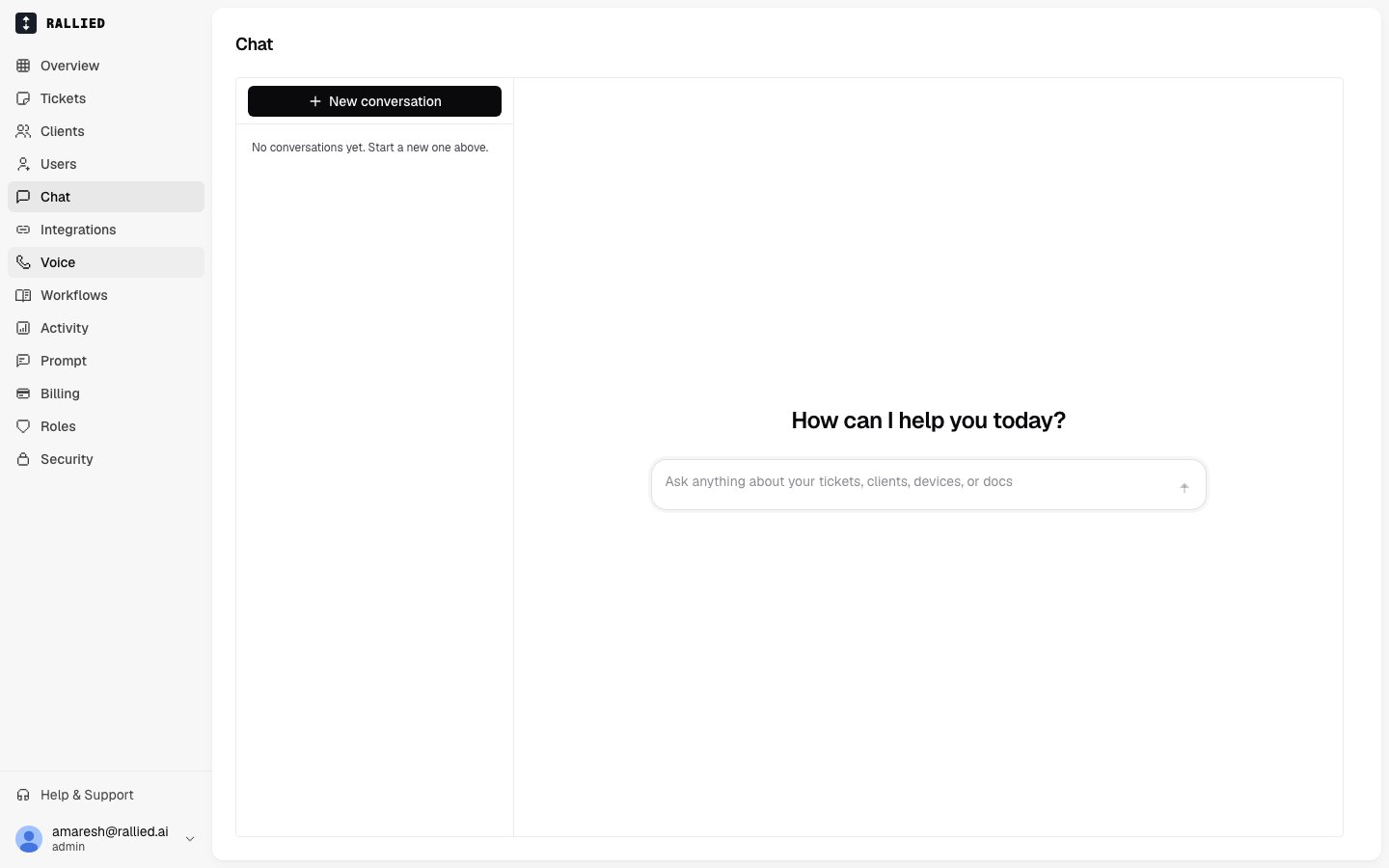
- Ask about a ticket — paste a ticket number or subject and the agent pulls the ticket, its notes, and the customer context.
- Kick off an action — “reset Jane’s password”, “grant Alex access to the finance shared mailbox”, “check whether server-03 is up”. The agent picks the right tool and posts a plan for your approval when needed.
- Work an incident together — walk through diagnosis step by step, with the agent surfacing findings as it goes.
- Ask questions about your setup — “which clients don’t have MFA enforced?”, “what workflows do we have for onboarding?”
The agent respects the same approval settings you’ve configured for the rest of Rallied. If a tool is set to Needs approval, the agent posts its plan and waits for you to reply “yes”/“go ahead”/“no, do X instead” before running it. See Approval settings.
Chatting from inside ConnectWise Manage
If you use ConnectWise Manage, you can embed the same chat inside the PSA using ConnectWise’s Hosted API, with no extra window and no context-switching. Your technician opens a ticket, opens the Rallied pod, and asks the agent to help.One-time setup in ConnectWise
1
Open Setup Tables in ConnectWise
In ConnectWise Manage, go to System → Setup Tables and open Hosted API.
2
Add a new Hosted API entry for Rallied
Click New. Fill in:
- Description —
Rallied. - Screen — pick the screens you want the pod to appear on (Service Ticket is the most useful).
- URL —
https://app.rallied.ai/embed/connectwise. - Origin —
https://app.rallied.ai.
3
Save and reload
Save the entry, then reload ConnectWise Manage. The Rallied pod now shows up in the sidebar of every screen you enabled it on.
What your technicians see
When a technician opens the pod on a ticket, ConnectWise hands Rallied the ticket ID and the login of the current CW user. From there:- Ticket context loads automatically, with no pasting IDs and no searching. The agent knows which ticket you’re on.
- The chat is scoped to your MSP. Rallied checks that the ConnectWise instance the pod was loaded from actually belongs to your MSP. If someone pasted the pod URL into a different tenant, the pod blocks the chat instead of leaking anything cross-tenant.
- Approvals happen inline. Same plan-and-approve flow as the rest of Rallied.
When the pod can’t open
You may see one of these instead of a chat:Common patterns
- Working from a ticket — open the ConnectWise pod, say “help me work this”, let the agent pull the customer’s setup and suggest next steps.
- Bulk asks — from the Chat tab, “list every ticket about printer issues in the last 48 hours” or “who’s overdue on onboarding tasks?”.
- Running a workflow ad-hoc — describe the outcome you want (“offboard Jamie in Contoso”) and let the agent walk through the same steps a matching workflow would run automatically.
Related
- Approval settings — decide which actions the agent runs on its own vs. asks about.
- Workflows — write playbooks that run automatically when matching tickets come in.
- ConnectWise Manage — connect the PSA the pod embeds into.