
1
Sign in to Rallied
Go to app.rallied.ai and sign in with your MSP account credentials.You’ll land on the Clients list, your home base for managing all the companies you provide IT services for.
2
Connect your PSA
The PSA is where employees submit tickets, where the agent posts its work, and where your technicians approve sensitive actions.Go to Settings → Integrations and click Connect next to your PSA: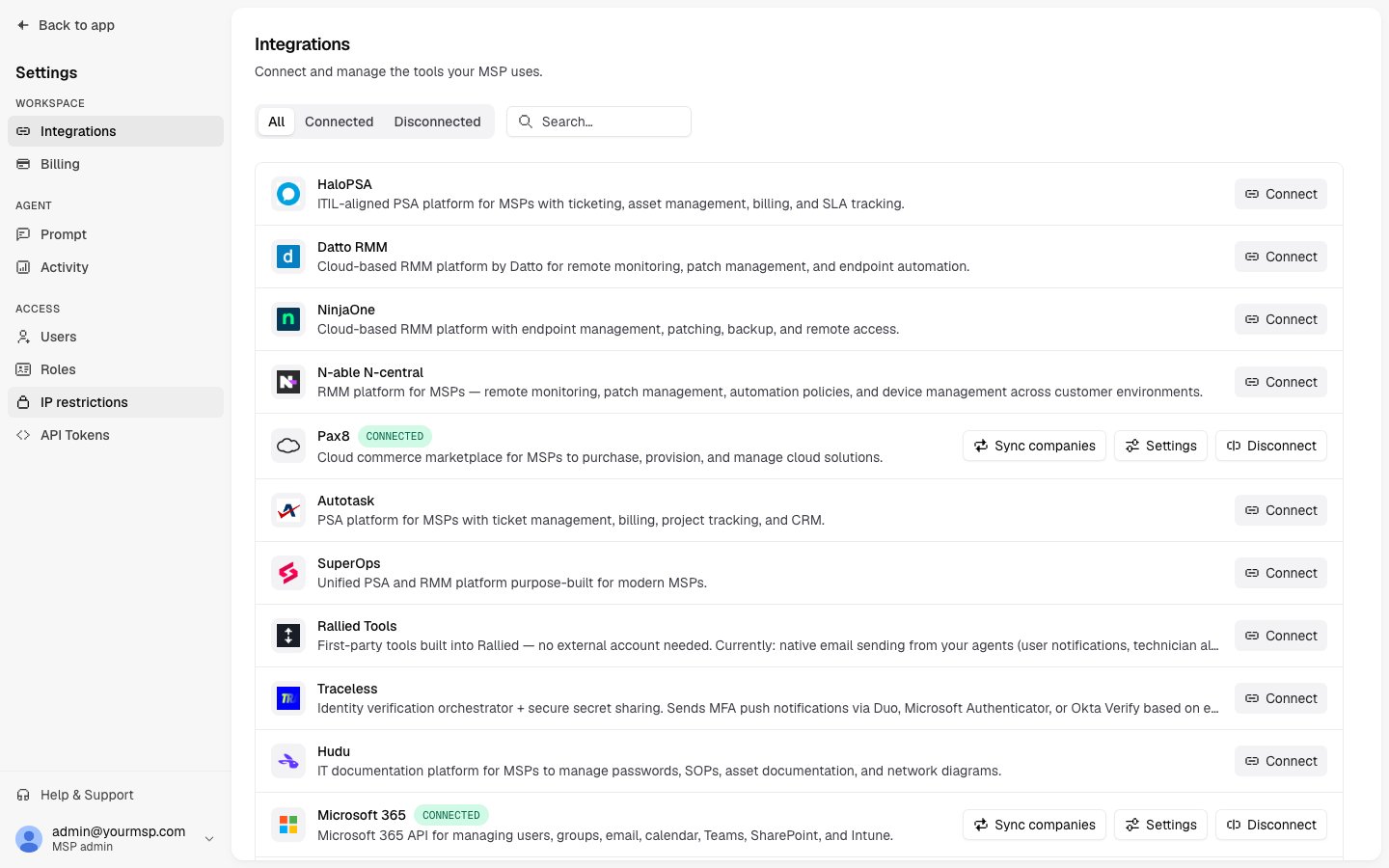
Once connected, the agent receives new tickets via webhook, posts internal notes documenting its reasoning, and routes approval requests as ticket comments.
3
Connect Microsoft 365
Microsoft 365 is the agent’s primary identity backbone. Connecting it lets the agent look up users, reset passwords, manage group membership, and handle Teams or Intune actions across every client tenant via GDAP.In Settings → Integrations, click Connect on Microsoft 365 and complete the multi-tenant app registration flow with your partner tenant admin account. See the Microsoft 365 setup guide for app registration details and the GDAP role mappings.
4
Connect your documentation platform
Hook up the platform where your team stores client-specific knowledge (passwords, runbooks, procedures, asset records). The agent reads from it during diagnosis so it can answer questions the same way your senior technicians would.
In Settings → Integrations, click Connect on Hudu or IT Glue and enter your API key.
5
Create your first client
Back on the Clients list, click Create Client in the top right.Fill in:
- Name — the company name as you want it to appear in Rallied (e.g., “Acme Corp”)
- Slug — a short identifier used internally (e.g.,
acme-corp). Lowercase letters, numbers, and hyphens only.
pending → provisioning → active within a minute or two.On the new client’s Integrations tab, map it to the matching company record in your PSA, the matching Microsoft 365 tenant, and the matching documentation site. This tells the agent which records belong to this client so it can scope its tool calls correctly.6
Review tool policies
Open the client’s Integrations tab and click into a connected integration to see every action the agent can take, along with its current policy.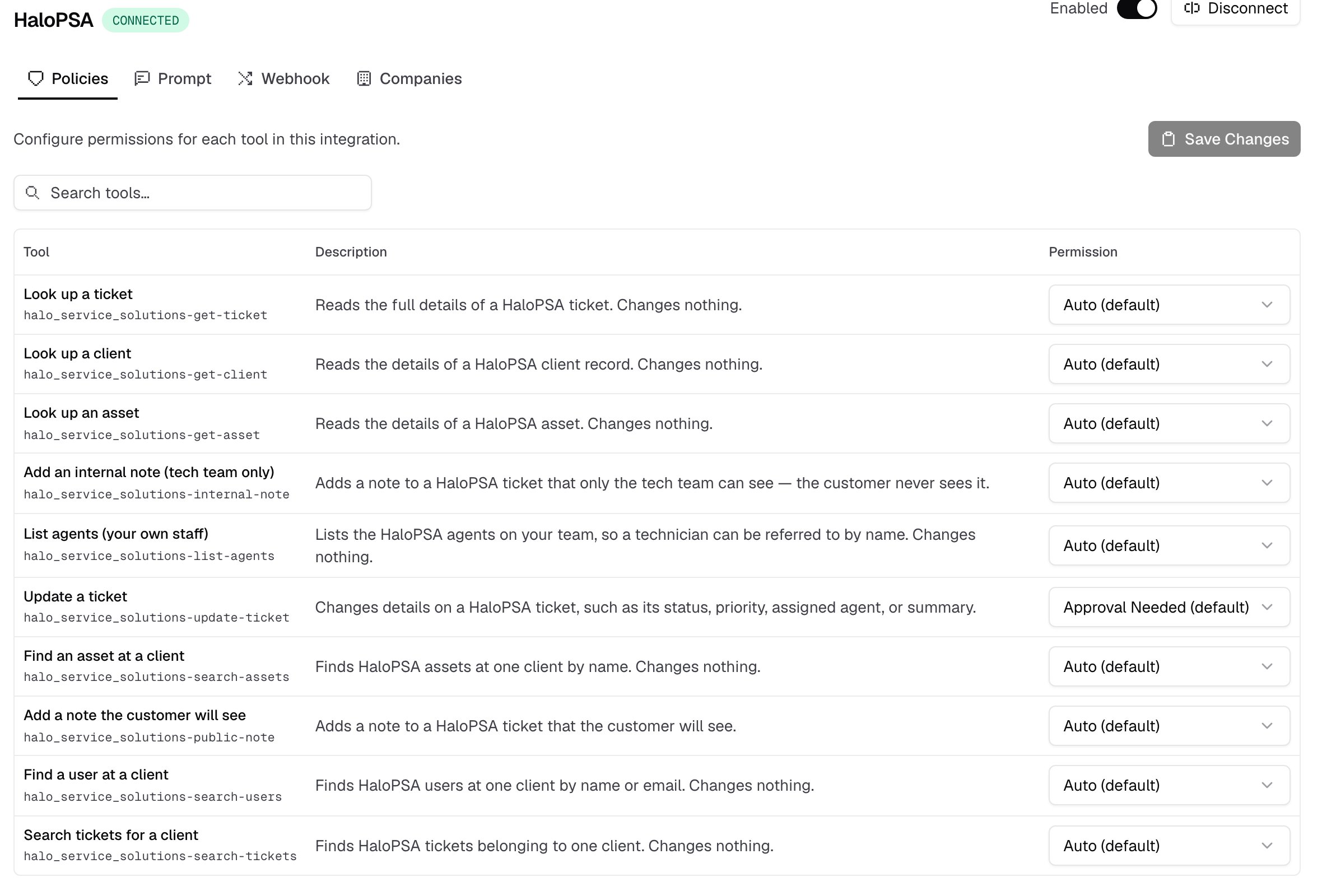
- Set read-only actions (like “get user” or “list articles”) to Auto so the agent runs them freely.
- Set write actions (like “reset password” or “add user to group”) to Approval needed until you trust the agent’s judgment.
- Set any actions you don’t want the agent to use to Disabled.
7
Set the agent mode
Go to the Overview tab for the client. Under Operating Mode, choose how the agent should behave:
- Plan Mode — the agent reads, diagnoses, and posts a private internal note with its plan. It never executes actions or replies to the employee. Use this to verify the agent understands your environment correctly.
- Execute Mode — the agent executes requests. Auto-approved actions run immediately; actions that need approval pause and wait for your team to approve before proceeding.
- Inherit — the client uses whatever mode you’ve set at the MSP level.
Plan Mode is strongly recommended for initial setup. Run a few real requests through it, review the internal notes, and confirm the agent is reasoning correctly before switching to Execute Mode.
8
Test it
Wait until the client status shows active. The agent is now live and listening on your PSA.Open your PSA and create a new ticket against the test client:
“My account is locked out”In Plan Mode, the agent posts an internal note on the ticket describing exactly what it would do: which tools it would call, in what order, and the expected outcome. No action runs.In Execute Mode, the agent works through the request, verifying the user in Microsoft 365, checking your docs platform for a relevant runbook, and either executing the unlock or requesting approval based on the policies you set.Every action the agent took or attempted appears in the client’s Activity tab.
What’s next
- Prompt customization — add client-specific context in the Prompt tab (what apps they use, any special handling rules) for more accurate responses.
- More integrations — connect your RMM, security tools, identity provider, and more from the integrations catalog.
- Workflows — set up workflows for your most common ticket types so the agent handles them exactly the way you want, every time.
- API — create a token and call the Rallied API to ask the agent about a ticket from your own tools.