
The three-tier prompt system
Base prompt — managed by Rallied
Base prompt — managed by Rallied
The base prompt defines the agent’s core IT helpdesk behavior: how to reason about requests, when to ask for clarification, how to use tools, approval flow logic, and safety rules. Rallied manages this prompt and updates it as the platform evolves.You cannot edit the base prompt.
MSP prompt — your organization's standards
MSP prompt — your organization's standards
The MSP prompt is where you document your organization’s IT policies and tool preferences. Every agent you run, across all your clients, receives this prompt in addition to the base prompt.Use it for things like:
- “Use Microsoft 365 for user lookups, password resets, and group changes. For clients with a separate identity provider, prefer that provider for app-access decisions.”
- “Escalate any request to create or modify admin-level accounts.”
- “When a user reports a software issue, check if they’ve restarted within the last 24 hours first.”
- “Our SLA for access requests is 4 business hours.”
Client prompt — per-client context
Client prompt — per-client context
The client prompt adds context specific to one company. The agent receives it in addition to the base and MSP prompts.Use it for things like:
- “This company uses Zendesk for customer support, Slack for communication, and Microsoft 365 for email and files.”
- “Users are in the
clinic-staffMicrosoft 365 group. Contractors are inclinic-contractors.” - “The IT contact for escalations is helpdesk@clinic.example.com.”
- “This client is a medical clinic: treat any patient data references with extra caution and do not store them in notes.”
Editing the MSP prompt
Go to Settings → Prompt (or, as a platform admin, open your MSP’s detail page and click the Prompt tab). Write your instructions in the editor and click Save.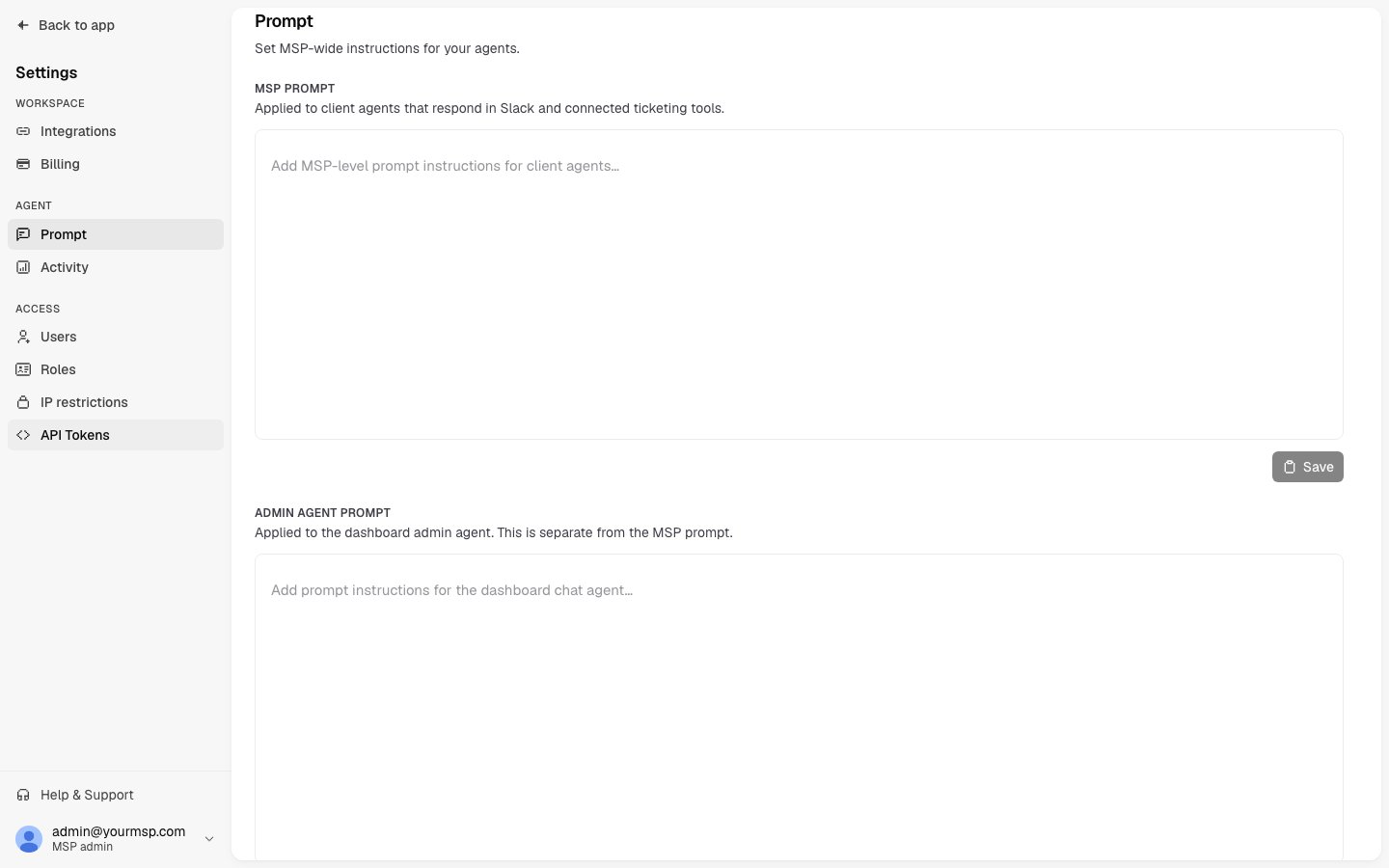
Editing a client prompt
Open a client’s detail page and click the Prompt tab. The editor shows only the client-level prompt. The base and MSP tiers are applied automatically and are not shown here. Write your client-specific instructions and click Save. The change takes effect on the agent’s next request.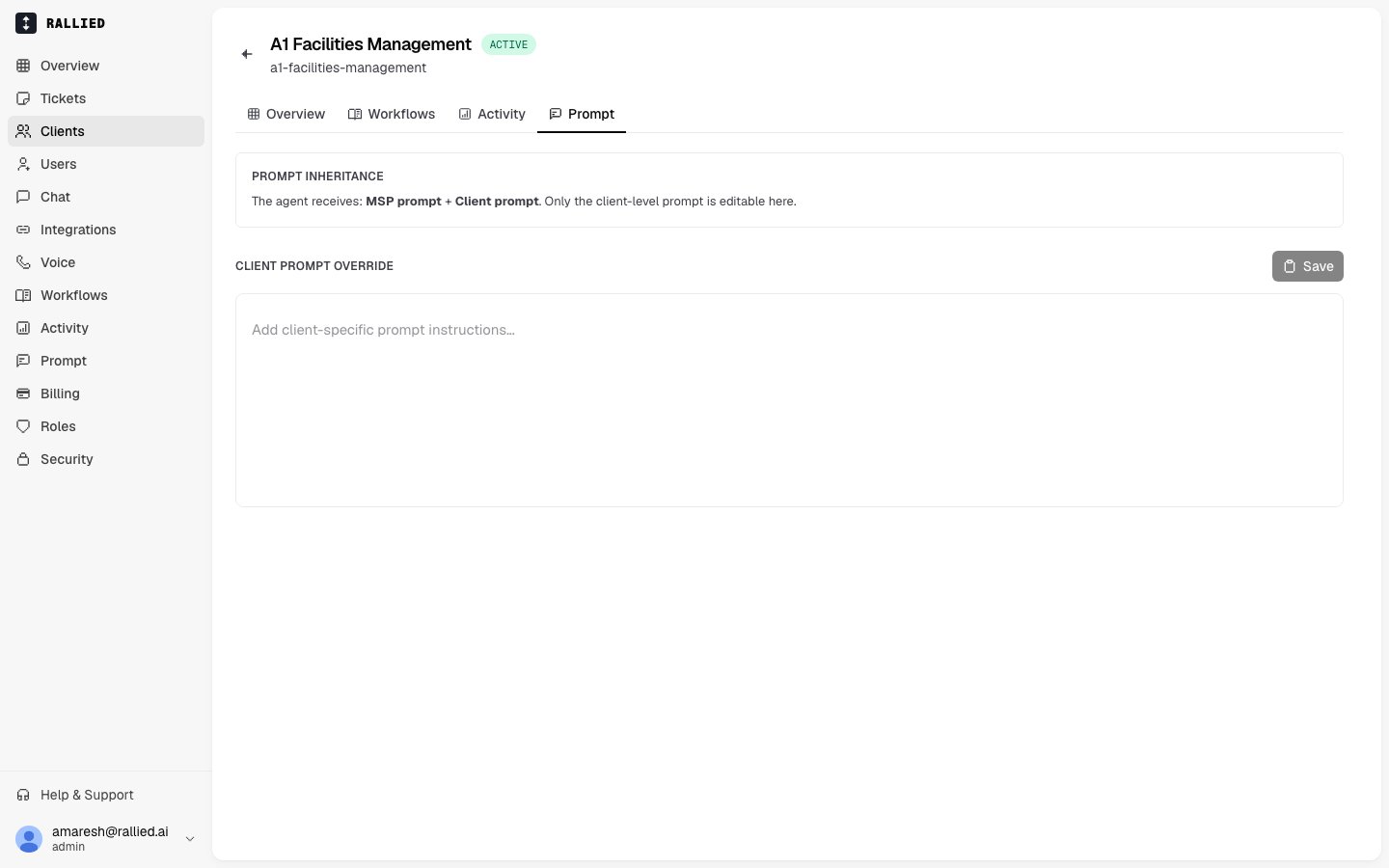
The Prompt tab shows a reminder that the agent receives both the MSP prompt and the client prompt. Avoid duplicating MSP-level rules in the client prompt; put shared standards in the MSP prompt where they apply to all clients.
Tips for writing effective prompts
Be specific about tool preferences. Don’t just say “use Microsoft 365”. Say “use Microsoft 365 to look up users and manage group memberships. Use them365-get-user tool to find a user before attempting any access changes.”
Document your escalation rules explicitly. The agent will follow written rules more reliably than implied ones. If admin account creation should always go to a human, write: “Never create admin accounts autonomously. Always escalate to the on-call technician.”
Include company-specific context the agent can’t discover on its own. Things like org chart conventions, Microsoft 365 group naming patterns, your PSA board routing rules (which boards or queues take which request types), or the names of key applications employees commonly request access to.
Keep MSP and client prompts focused. The base prompt already covers general IT helpdesk reasoning. Your prompts should add what the base prompt can’t know: your policies, your tools, your clients’ environments.