
Connecting an integration
Open Settings → Integrations. You’ll see a grid of all available apps: PSA (ConnectWise, HaloPSA, Autotask), Microsoft 365, RMM (NinjaOne, Datto, ConnectWise Automate, ConnectWise RMM, N-central), documentation (IT Glue), and more.1
Find the app
Use the search bar or category filters to find the integration you want to connect. Apps already connected show a connected badge.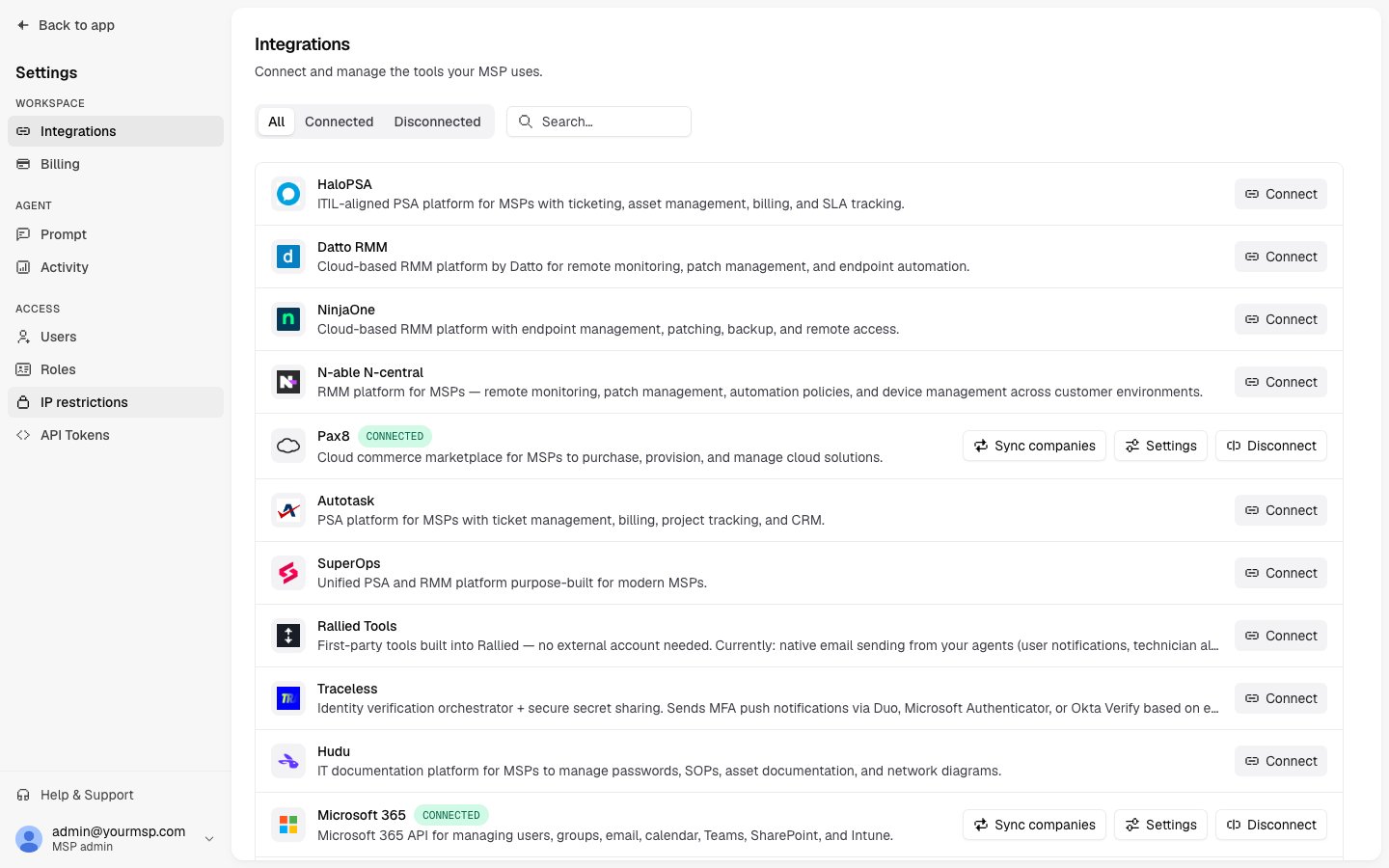
2
Click Connect
Click Connect on the app card. A sign-in window opens. Sign in to the service and grant Rallied access, or enter API credentials for integrations that use a credentials form.
3
Review policies
After connecting, you’re taken to the integration’s detail page. Approval settings are pre-set with sensible defaults: reads are auto-approved, writes need approval. Review and adjust these before the agent starts handling requests.
Your credentials are only used to let the agent take the actions you’ve approved. They’re never exposed anywhere else.
What happens on connect
When you connect an integration, the actions that app offers become available to the agent with sensible defaults: reads run automatically, writes need approval. The agent starts using them straight away.Syncing companies from your PSA or RMM
Integrations that hold a list of companies — ConnectWise Manage, HaloPSA, Autotask, ConnectWise RMM, NinjaOne, N-central, and Pax8 — can pull those companies into Rallied as clients, so you don’t have to create each one by hand. Open the integration’s detail page, go to the Companies tab, and click Sync Companies. A progress dialog runs the sync and closes when it’s done. For each company found:- A new client is created if no client with that company’s identifier exists yet.
- An existing client gains the integration as a new source if the company already exists under a different system.
You can re-run a sync any time. Existing clients are never duplicated; only new companies and new sources are added.
Disconnecting an integration
Click Disconnect on a connected app card (or from within the integration’s detail page). A confirmation dialog tells you exactly what will happen — including how many clients will be deleted because that integration was their only source. On disconnect:- The integration is removed and the connected account is revoked
- All approval settings for that app are cleared
- The integration is removed from every client’s list of sources
- Any client left with no sources at all is deleted; clients that still have another source (a PSA record for the same company, say) are kept
Custom MCP servers
Bring the agent your own tools by adding a remote MCP server. Click Add MCP Server in the top-right corner of the Integrations tab.1
Enter the server URL
Paste the HTTPS URL of the MCP server (e.g.
https://mcp.example.com/v1). Local servers and plain HTTP are not supported. Click Continue. Rallied checks the server and figures out how it wants to be authenticated.2
Configure authentication
Depending on what the server requires, you’ll see one of these options:
- Sign-in — a window opens for you to authorize the connection
- Bearer token — paste your API key or token
- Custom header — specify the header name and value
- No auth — the server is publicly accessible; no credentials needed
3
Connect
Click Connect (or Authorize if a sign-in window is needed). The server’s actions become available to the agent with sensible defaults.