
Creating a client
1
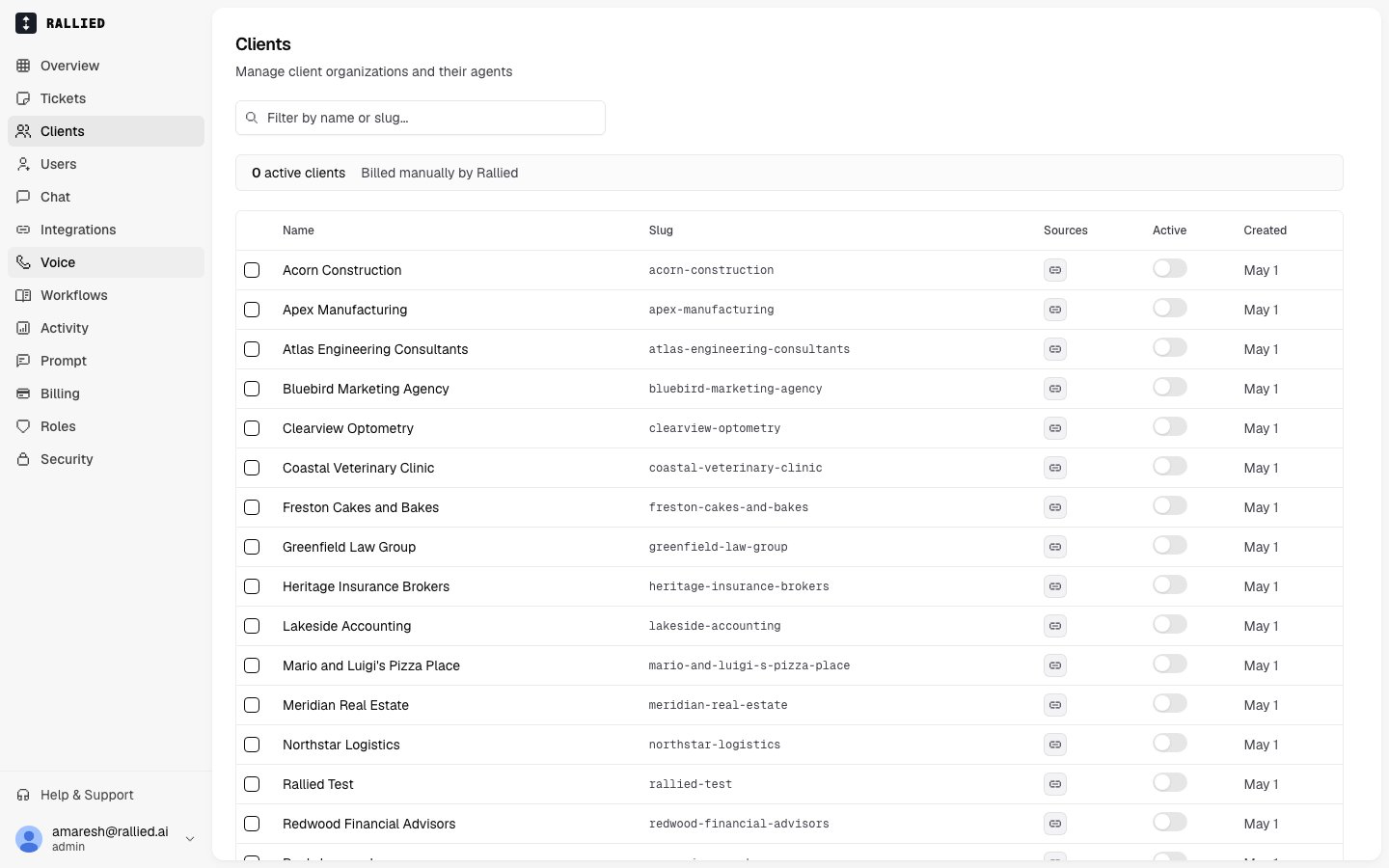
Open your Clients list
Open your MSP in Rallied. You’ll see a list of all your existing clients.
2
Click New Client
Click the New Client button. Enter the client’s name (displayed in Rallied) and a slug (a short, lowercase identifier used internally, e.g.
acme-corp). The slug must be unique across your clients and can only contain lowercase letters, numbers, and hyphens.3
Save
Click Create. The agent is provisioned automatically in the background; you don’t need to trigger anything.
The client detail view
Click any client’s name to open its detail page. The detail view is organized into tabs: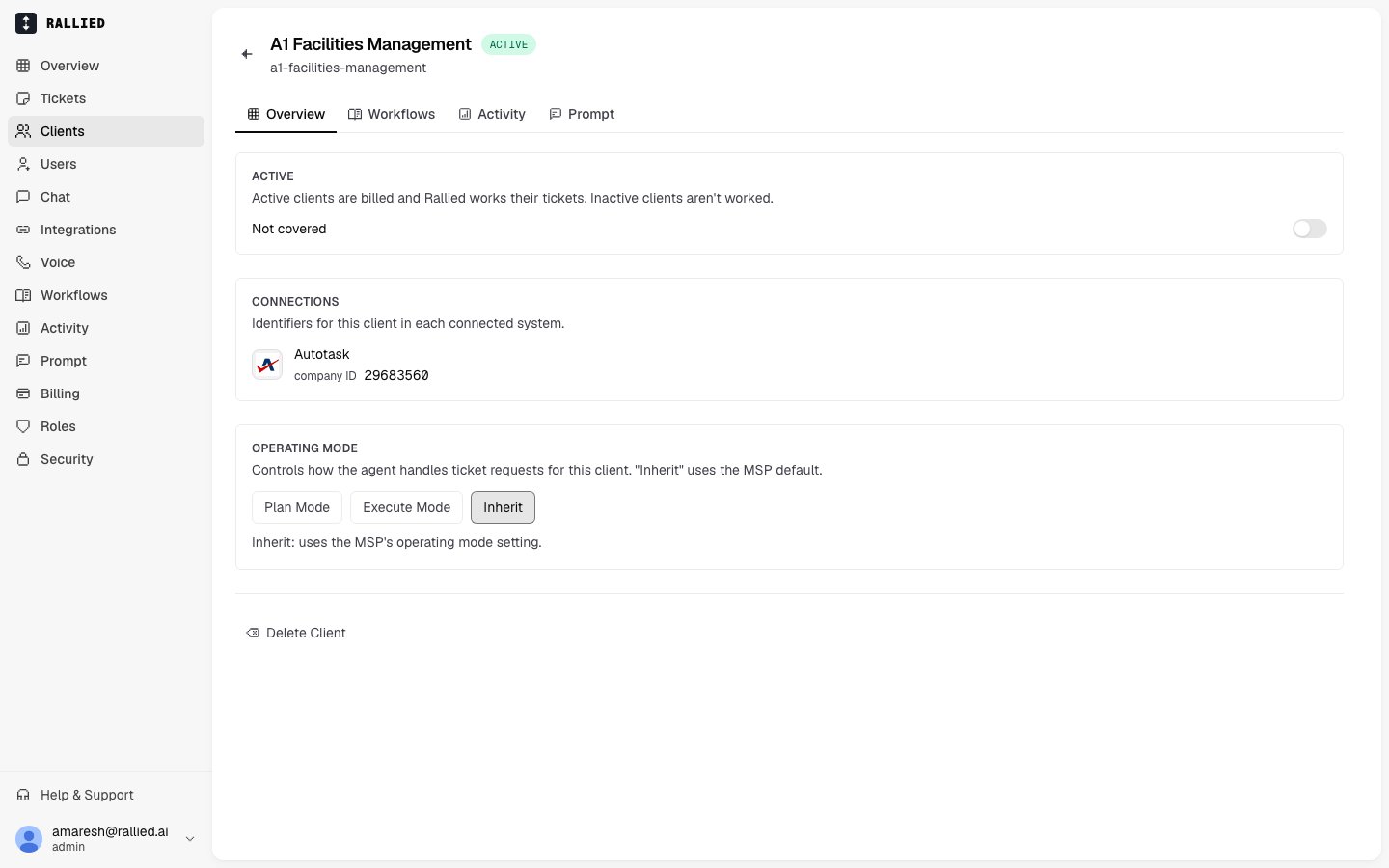

Overview
Operating mode, agent status, and client management actions including delete.

Integrations
Connect and manage third-party tools the agent can use for this client. Tool policies for each integration live on the integration’s detail page.

Activity
A full audit log of every tool call the agent has made.

Prompt
Client-specific prompt instructions layered on top of your MSP prompt.

Diagnostics
Agent container health, logs, and resource usage for troubleshooting.
There is no top-level Policies or Sessions tab. Tool policies are configured per integration: open the integration from the Integrations tab. Conversation transcripts appear in the Activity log alongside tool calls.
Client status
Two status fields appear on the Overview tab:
When you create a client or update its integrations, the status moves through transitional states (
creating → provisioning → active) while the agent is being set up. The page refreshes every 5 seconds, so status updates appear on their own.
If Deploy status shows an error, the error message appears below the badge so you can see what went wrong.
“Provisioning” means the system is setting up the agent container on your MSP’s server. This usually takes under a minute and you don’t need to do anything.
Operating mode
Each client can run in one of three modes, configurable from the Overview tab:- Plan
- Execute
- Inherit
The agent reads the request, analyzes it, and writes its plan as an internal note on the ticket, then stops. It never executes any actions. Use this when you want to evaluate the agent’s judgment without it making changes.
Grouping clients into a workspace
The same company often lives in more than one of your systems: a record in your PSA, another in your RMM, maybe a third in a documentation tool, each with its own ID. By default Rallied creates one client row per source, which clutters your list with duplicates and, worse, means the agent can act on the wrong record when the systems disagree on the company’s name. A workspace groups those rows into a single client. One member becomes the primary: its agent, prompt, and settings handle every ticket, no matter which system the ticket came from. The other members keep their own identifiers so the agent can still reach the right record in each system.Rallied picks the primary for you: a ticketing (PSA) member wins over an RMM member, which wins over any other source. Ties go to whichever member was created first. There’s no manual override.
Group clients together
1
Select the clients
In your Clients list, tick the checkbox on each row you want to group. All of them must be standalone clients, not ones already in a workspace.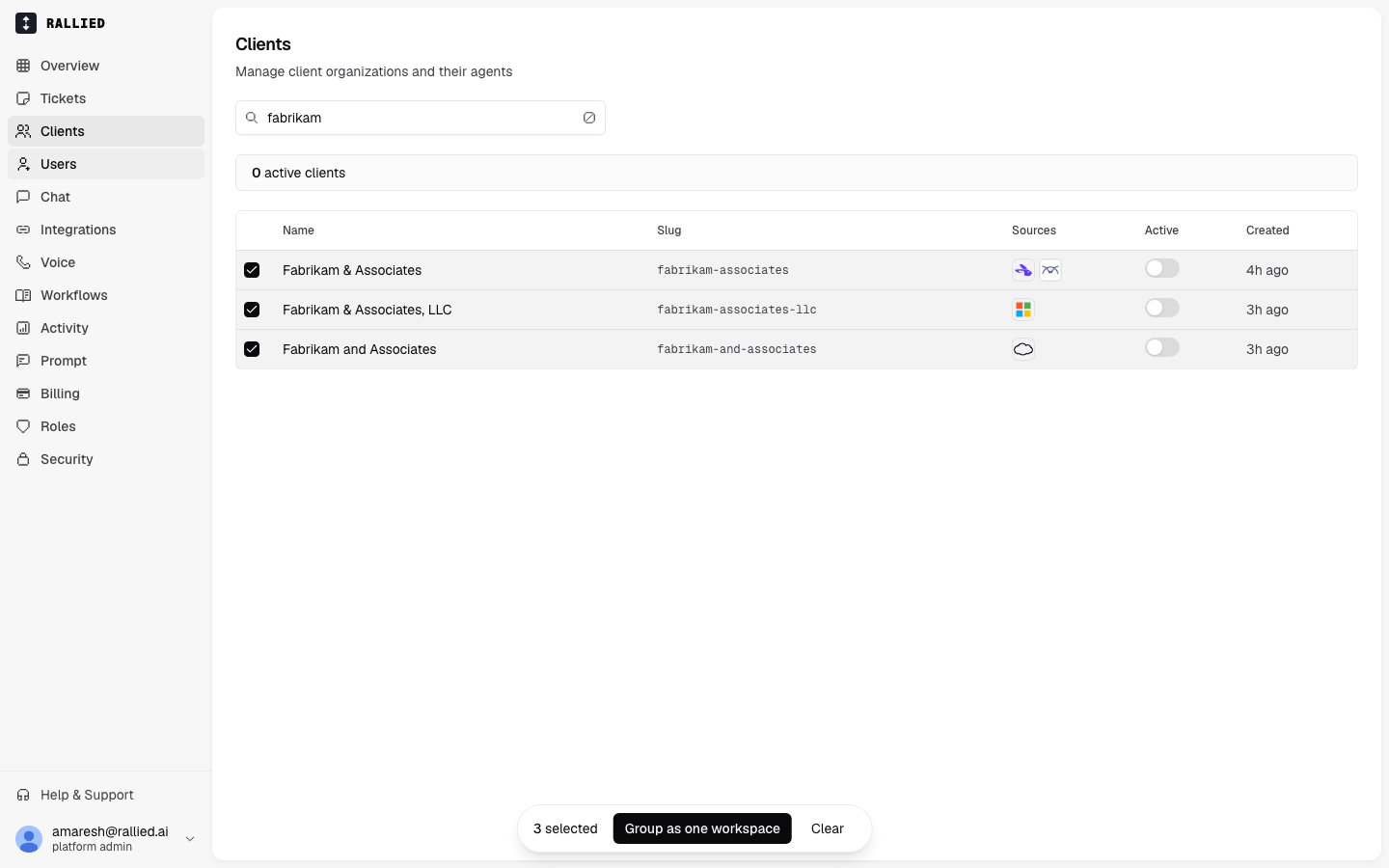
2
Group them
Click Group as one workspace in the action bar at the bottom of the list. A dialog shows the members you selected; give the workspace a name and click Group clients.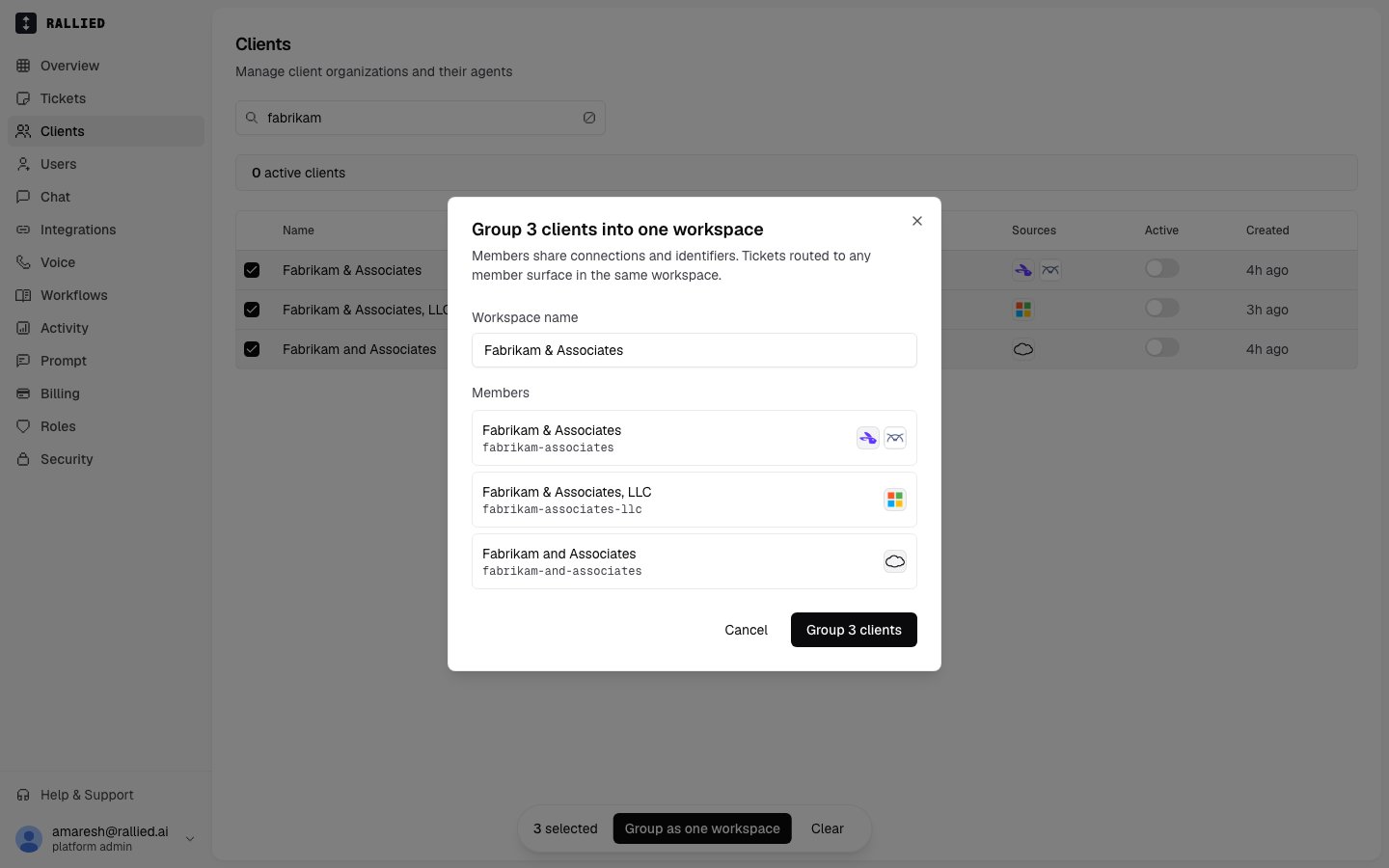
3
Done
The selected rows collapse into a single row under the primary’s identity, marked with a group icon. The Sources column shows a logo for each system the workspace’s members came from.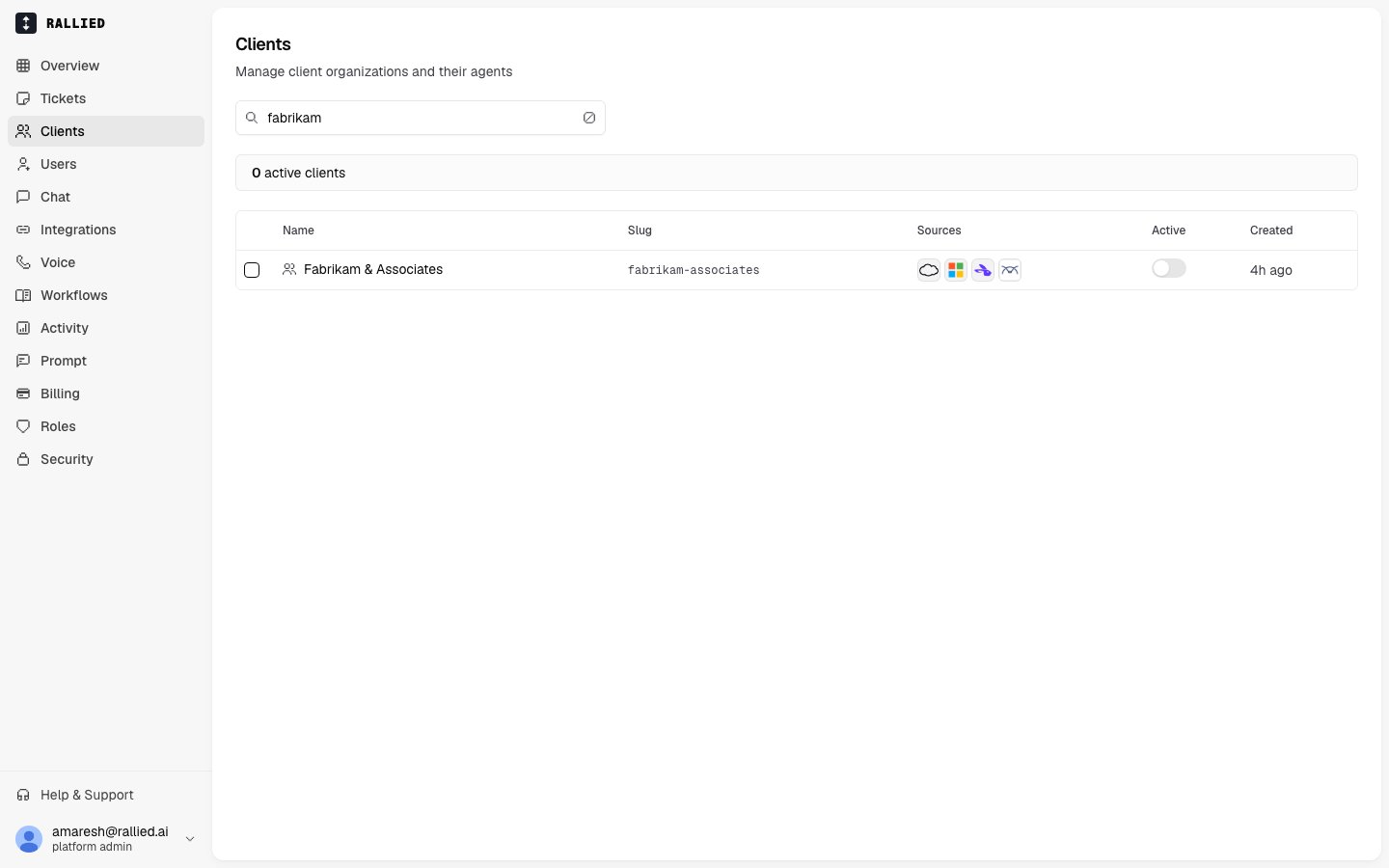
Edit or dissolve a workspace
Open the workspace from the Clients list and go to the Overview tab. The Workspace section lists each member, tags the primary with aPRIMARY badge, and shows the member’s identifier in each system it came from.
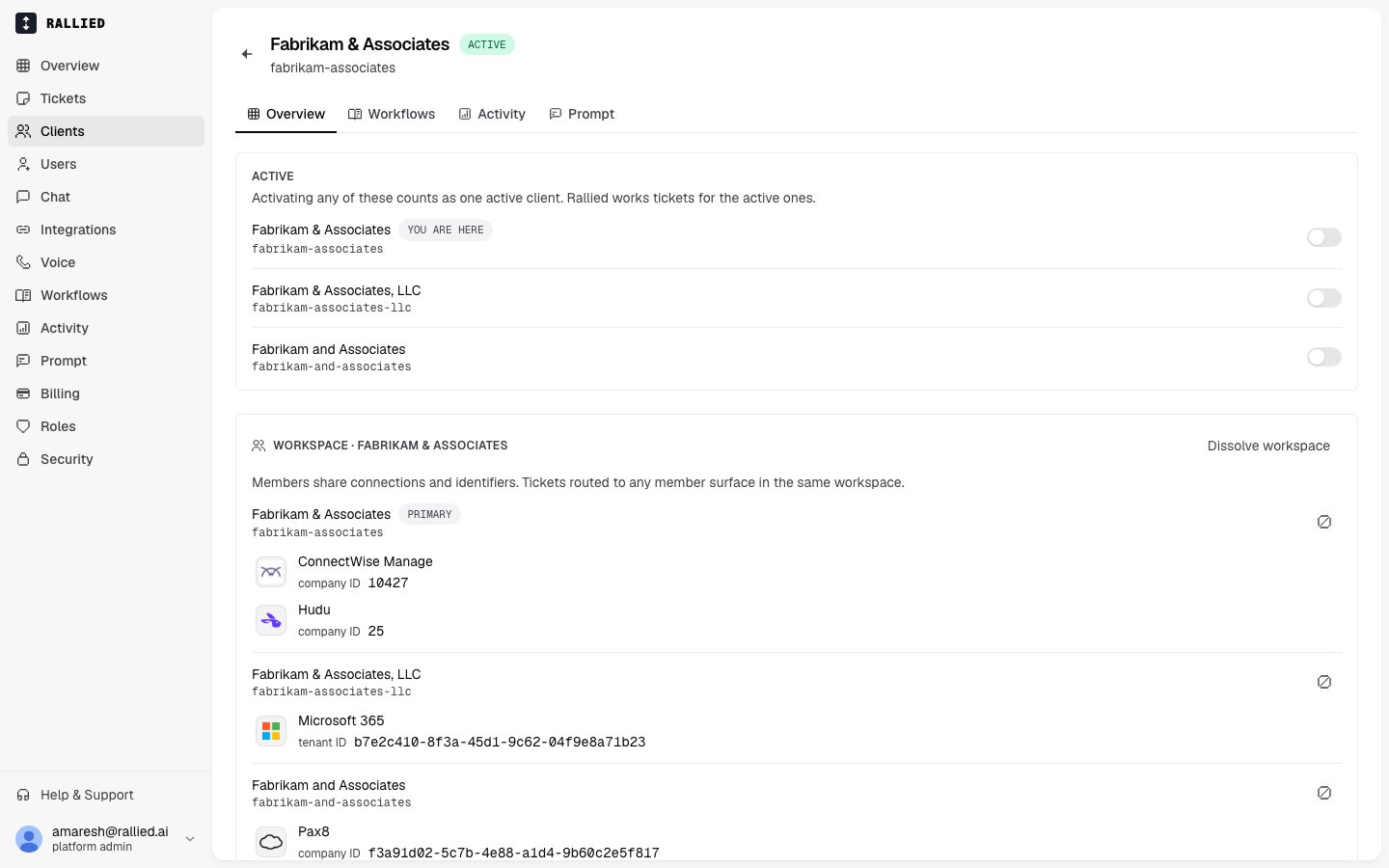
Each member keeps its own Active toggle, but activating any of them counts as one active client, so grouping never increases your bill.