
Overview
The Microsoft 365 integration uses a multi-tenant app registration in your MSP’s partner tenant to manage customer tenants via GDAP. Once connected, the agent can:- Manage user lifecycle — create, disable, and enable users; assign and remove licenses; reset passwords.
- Manage groups and distribution lists — add and remove members from both security groups and mail-enabled distribution lists.
- Manage Exchange mailboxes — grant shared mailbox access, convert to shared mailbox, forward email.
- Respond to security incidents — revoke active sign-in sessions for a user, look up sign-in failures, and check risky-user status.
- Contain email compromise — stop mailbox-level forwarding, and list and remove Outlook inbox rules. See Email forwarding and inbox rules.
- Send email on behalf of a mailbox — for out-of-band notifications during an incident (e.g. notifying a manager that a compromised account has been contained).
- Search SharePoint sites and check who has access — find a site by name, and (optional) list its permissions.
All operations respect your configured tool policies. Write operations (password reset, user creation, group changes) require approval by default.
Phase 1: Configure the MSP’s partner tenant
These steps are performed once in the MSP’s own Entra tenant.1. Create an app registration
- Sign in to entra.microsoft.com with your partner tenant admin account
- Navigate to Applications → App registrations → + New registration
- Fill in:
- Name — e.g.
Rallied Integration(this display name appears in role pickers across all customer tenants — make it recognizable) - Supported account types — select “Accounts in any organizational directory (Multitenant)”
- Redirect URI — add one: type Web, any URL you control (e.g. your Rallied dashboard URL). It isn’t used at runtime, but Phase 3’s admin-consent step needs one registered.
- Name — e.g.
- Click Register
2. Generate a client secret
- In the app registration, go to Certificates & secrets → + New client secret
- Set a description (e.g.
Rallied production) and expiration (24 months recommended) - Click Add
3. Add API permissions
Navigate to API permissions → + Add a permission and add all of the following as Application permissions. Microsoft Graph (under Microsoft APIs → Microsoft Graph):
Exchange Online (under APIs my organization uses → Office 365 Exchange Online):
4. Grant admin consent
Still on the API permissions page:- Click Grant admin consent for [your organization] at the top
- Confirm in the dialog
- Verify the Status column shows a green checkmark (“Granted”) for every permission
Granting consent requires Global Administrator or Privileged Role Administrator in the partner tenant. Cloud Application Administrator is not sufficient for Microsoft Graph application permissions.
Phase 2: Connect in Rallied
- In Rallied, go to the MSP’s page → Integrations → Microsoft 365
- Click Connect
- Enter:
- Application (Client) ID — from Phase 1, Step 1
- Client Secret — from Phase 1, Step 2
- Partner Tenant ID — from Phase 1, Step 1
- Click Submit
Phase 3: Onboard customer tenants
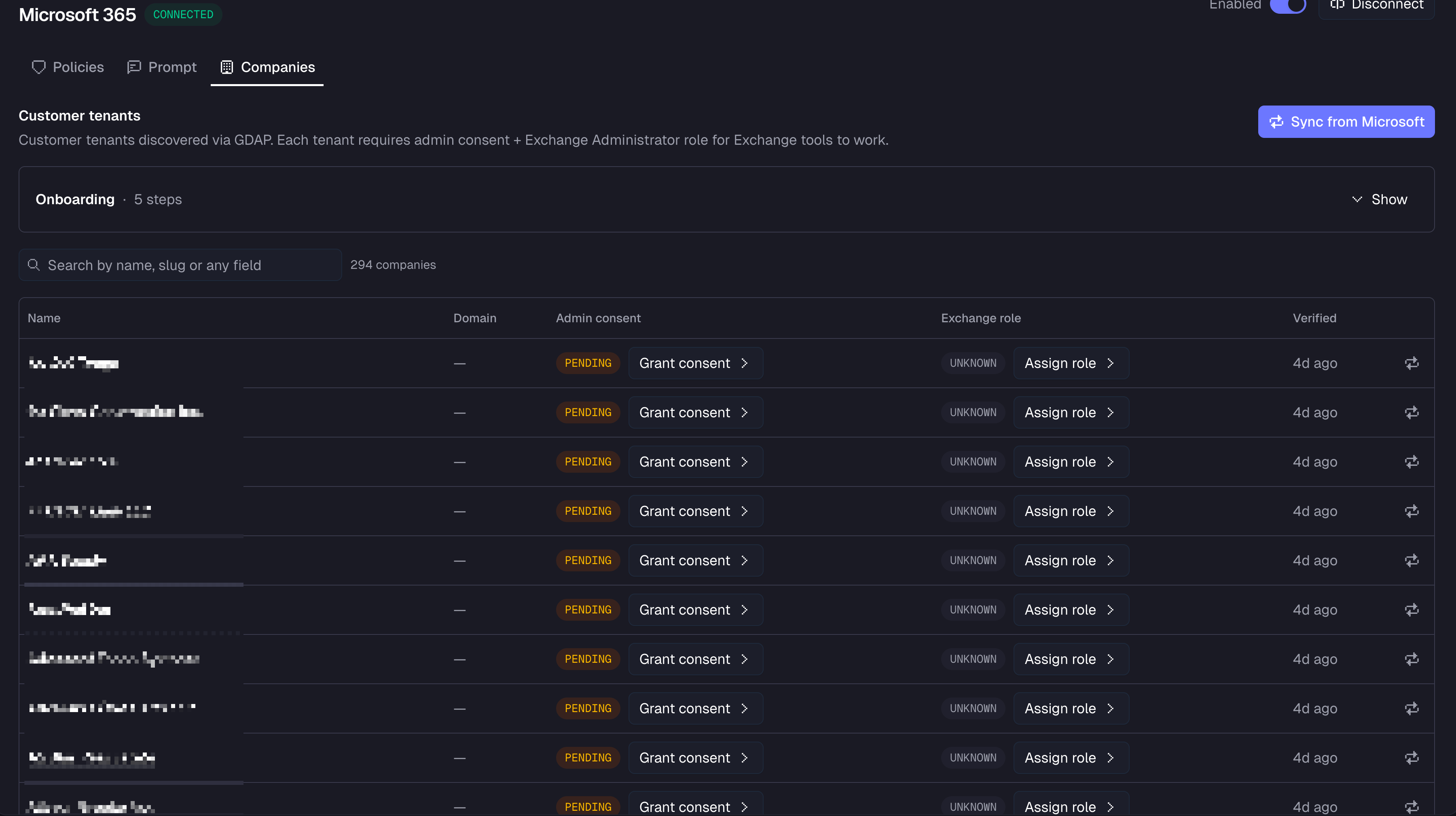
Who can perform these steps
- A Global Administrator (or Privileged Role Administrator) of the customer tenant, OR
- The MSP acting via GDAP, if the relationship includes Global Administrator or Privileged Role Administrator
Cloud Application Administrator and Application Administrator are not sufficient — Microsoft restricts consent for Graph application permissions to Global Admin or PRA (source).
Step 1: Sync from Microsoft
Click Sync in the Companies tab to discover all customer tenants in your GDAP relationships. New tenants appear in the table with status Pending.Step 2: Grant admin consent
For each tenant where Consent shows Pending:- Click Grant admin consent on that row
- Sign in as a Global Administrator (or PRA) of the customer tenant — or use GDAP if your relationship includes those roles
- Approve the permissions in the Microsoft consent dialog
Step 3: Assign the Exchange Administrator role
For each tenant where Exchange shows Pending:- Click Assign Exchange Admin role on that row (opens Entra for that tenant)
- In Entra, go to Identity → Roles & admins
- Click the Exchange Administrator role
- Click Add assignment and add the Rallied app’s service principal
This step is only required if you want the agent to manage distribution groups, shared mailboxes, and mailbox permissions. Graph-only operations (user management, groups) work without it.
Step 3b: Assign the User Administrator role
For each tenant where User Admin role shows Pending:- Click Assign role on that row (opens Entra for that tenant)
- In Entra, go to Identity → Roles & admins
- Click the User Administrator role
- Click Add assignment and add the Rallied app’s service principal
Required for password reset. Graph-only operations (user creation, groups, licensing) work without it.
If a verification confirms the role is missing in a tenant, the agent refuses to request approval for password resets and user enable/disable there. Microsoft would reject the step with
403 Authorization_RequestDenied even after a technician approves it, so the agent escalates the ticket instead and explains which role to assign. Assign the role, wait for propagation, then click Re-verify on the tenant row to clear this.Step 4: Wait for propagation
Microsoft caches role permissions for 30 minutes to 2 hours. Tools may return 403 during this window even when the setup is correct.Step 5: Re-verify
Click Re-verify on the row to refresh status. When the badges you need turn green, the tenant is ready. Confirm by asking the agent to list users or distribution groups for that company.Done! The tenant is fully onboarded. The agent can now manage users, groups, passwords, and mailboxes for this customer.
Email forwarding and inbox rules
A compromised account exfiltrates mail through two separate mechanisms, and Exchange tracks them independently. The agent can act on both:- Mailbox-level forwarding — the forwarding setting on the mailbox itself, what admins usually mean by “a forwarding rule”. The agent can set forwarding to an SMTP address (optionally keeping a copy in the mailbox) or stop it entirely. Stopping forwarding clears both the modern and legacy Exchange forwarding fields, so a rule set through the older field can’t quietly keep forwarding mail.
- Outlook inbox rules — client-side rules created in Outlook that forward, redirect, delete, or move mail. These don’t appear in mailbox-level forwarding settings, which makes them the more common account-takeover vector. The agent can list a mailbox’s rules (including what each one does) and remove a specific rule.
These tools use the direct Exchange path, so the tenant needs the Exchange Administrator role assigned (Phase 3, Step 3). They are not yet available for tenants that rely on CIPP for Exchange access (Exchange: working (cipp)).
Optional: Connect CIPP
If your MSP already runs CIPP, connecting the CIPP integration is the fastest way to get every customer tenant ready. It saves two big chunks of work:- Grant admin consent across all your tenants at once. No more clicking Grant admin consent on each row in Phase 3. Per-row consent still works for any tenant CIPP can’t reach.
- Use Exchange tools without assigning the Exchange Administrator role per tenant. The agent picks up distribution groups and shared mailboxes through CIPP automatically, so you can skip Phase 3, Step 3 for those tenants. They show Exchange: working (cipp) on the Companies tab. Email forwarding and inbox rule tools are the exception: they still need the Exchange Administrator role assigned directly.
- Read SharePoint site permissions without granting
Sites.FullControl.Allto the Rallied app. The agent picks up “who has access to this site” through CIPP automatically, so you never need to add that permission at all. Those tenants show SharePoint: working (cipp) on the Companies tab.
Required permissions summary
Troubleshooting
Site-permission reads fail with Forbidden, but site search and everything else work
Site-permission reads fail with Forbidden, but site search and everything else work
Site search (
msgraph-list-sites) only needs Sites.Read.All. Reading who has access to a specific site (msgraph-get-site-permissions) needs the much broader Sites.FullControl.All, which is optional and not part of the base permission set for that reason. Either add it (Phase 1, Step 3) and grant admin consent again (Phase 3, Step 2), or connect CIPP and skip granting it to the Rallied app entirely.Cloud App Admin / App Admin can't grant consent
Cloud App Admin / App Admin can't grant consent
When the app declares Microsoft Graph application permissions, only Global Administrator or Privileged Role Administrator can grant consent. Cloud Application Administrator and Application Administrator are insufficient.
Role assignments don't propagate between tenants
Role assignments don't propagate between tenants
Assigning a directory role (Exchange Administrator, User Administrator) in the partner tenant does not grant that role in customer tenants. Each customer tenant requires its own assignment.
GDAP template missing required roles
GDAP template missing required roles
To perform consent + role assignment via GDAP (without a customer admin), the GDAP relationship must include Global Administrator or Privileged Role Administrator. Verify your GDAP template before attempting.
Tools returning 403 after setup
Tools returning 403 after setup
Microsoft caches role permissions for 30 minutes to 2 hours after assignment. Wait and re-verify. This is expected behavior.
App not appearing in role assignment picker
App not appearing in role assignment picker
The display name set during app registration (Phase 1, Step 1) is what appears in role pickers across all tenants. If you can’t find it, search by the Application (client) ID instead.
Connect fails with an invalid client secret error
Connect fails with an invalid client secret error
AADSTS7000215: Invalid client secret provided. Ensure the secret being sent in the request is the client secret value, not the client secret ID...The Certificates & secrets page shows two similar-looking values side by side: Value and Secret ID. Rallied needs the Value, not the Secret ID — double check which one you copied. If in doubt, generate a new secret and copy the Value right away, before navigating away from the page.Admin consent fails with no reply address registered
Admin consent fails with no reply address registered
AADSTS500113: No reply address is registered for the application.The app has no Redirect URI. Go to the app’s Overview page in Entra, click Add a Redirect URI, add one as type Web (any URL you control works — it isn’t used at runtime), then try the consent again.Companies tab shows 'Update available' next to Admin consent
Companies tab shows 'Update available' next to Admin consent
Rallied added a new permission since this tenant last consented (for example
AuditLog.Read.All). This isn’t an error — everything already granted keeps working exactly as it did. It just means a newer permission exists that this tenant hasn’t picked up yet. Check that the app registration in Entra has every permission listed in Phase 1, Step 3, then click Re-consent on that row to grant it too — re-consenting alone won’t help if the permission was never added to the app.


