
ticketId and a prompt to one endpoint.
To use the API, you must be an MSP admin with a PSA connected under Settings → Integrations.
Create an API token
1
Open API Tokens
Go to Settings → API Tokens.
2
Name the token and create it
Enter a name that identifies what will use it (for example,
PSA automation), then click Create token.3
Copy the token
Rallied shows the full token once. Copy it into your secrets manager, then click Done, I saved it.If you close the panel before copying, click Revoke next to the token, confirm, and create a new one.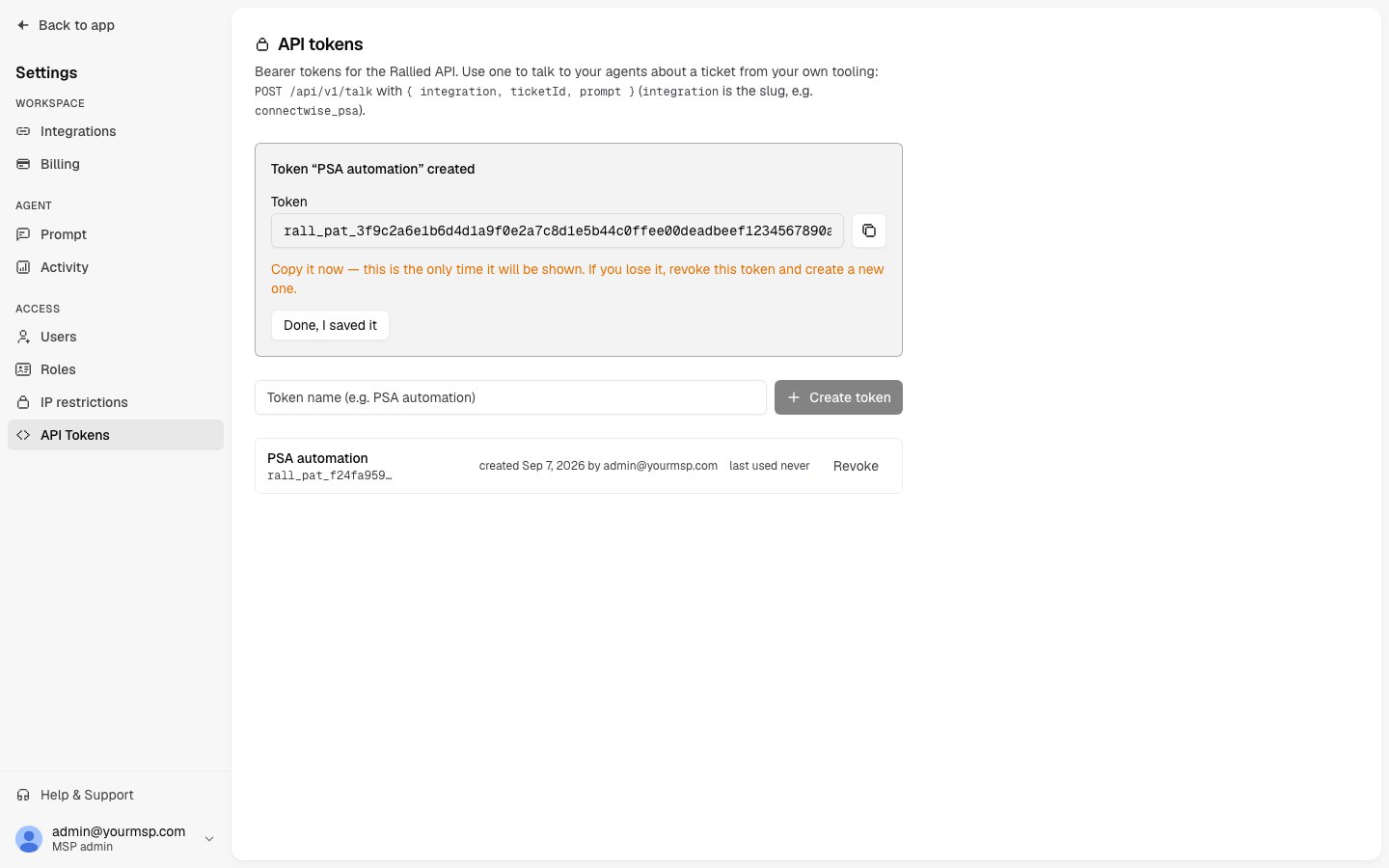
Tokens do not expire. A single token can act on any client and any ticket in your MSP. Each token displays a last used time, so you can spot idle tokens and tokens still in use that shouldn’t be.
Revoke a token
On Settings → API Tokens, click Revoke next to the token, then click Confirm revoke. Subsequent calls with that token fail immediately with a 401. Revoked tokens remain in the Revoked list so you have a record of when each one was retired.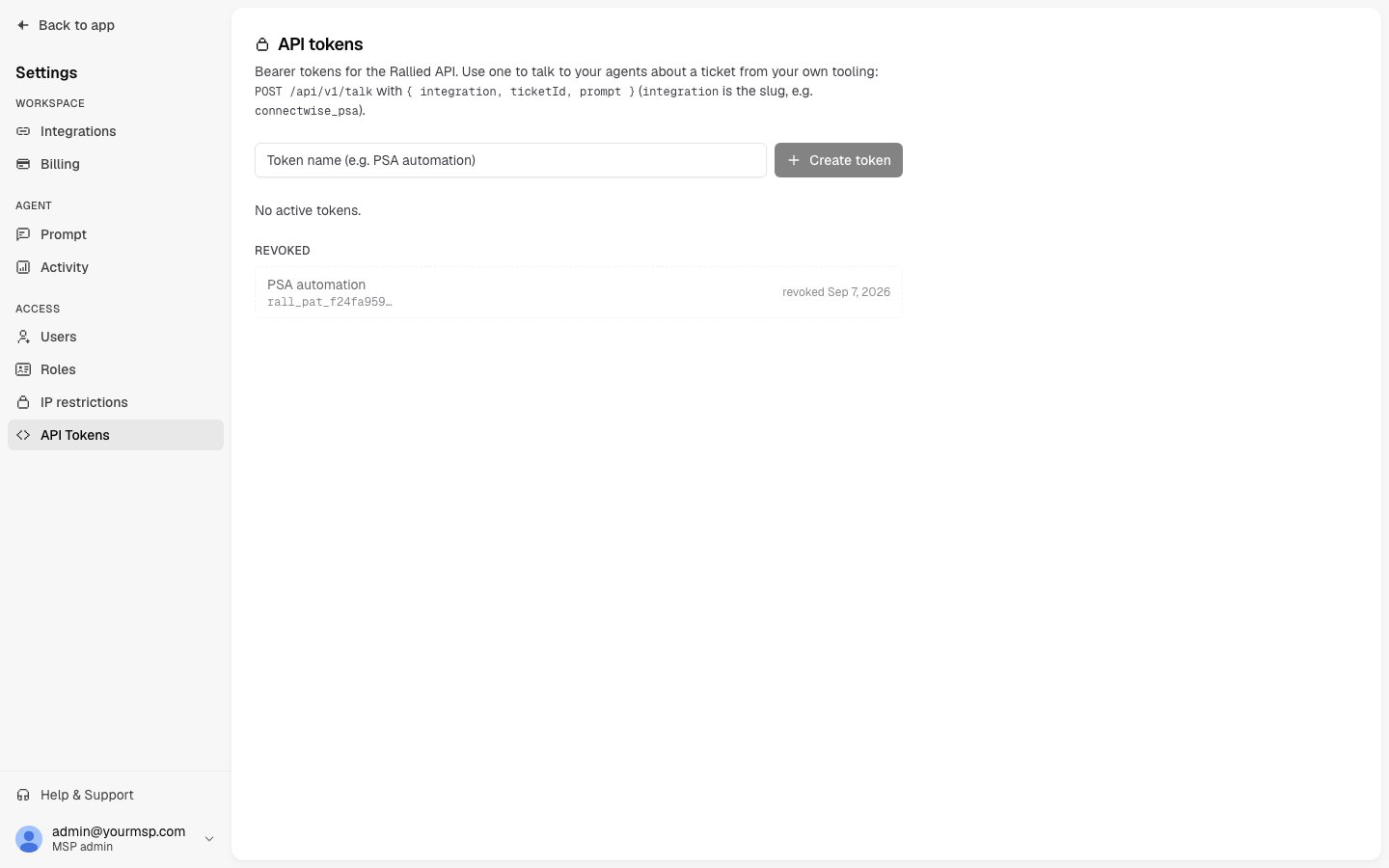
Talk to your agent about a ticket
Request body
string
required
Slug of the connected PSA that holds the ticket. Lowercase letters, digits,
_, and -. Maximum 64 characters. See Integration slugs.string
required
The ticket number or ID in that PSA. Letters, digits,
., _, and -. Maximum 64 characters. The ticket must already exist in Rallied (see How the conversation works).string
required
What you want to ask or tell the agent. 1 to 20,000 characters.
Integration slugs
You can also copy the slug from the API slug chip on the integration detail page under Settings → Integrations.
Example request
Example response
string
The agent’s answer to your prompt.
string
The agent’s reasoning, when it shares it. Omitted when empty.
string
Unique ID for this request/response exchange.
string
Identifier for the conversation this exchange belongs to. Stable for a given integration and ticket, so follow-up calls continue the same conversation.
string
Slug of the client that owns the ticket.
string
plan when the client is in Plan Mode, execute when the client is in Execute Mode.integer
How long the agent took to answer, in milliseconds.
How the conversation works
Rallied must already know the ticket. The API does not look tickets up in your PSA. It only sees tickets that arrived by webhook while the integration was enabled, for companies that are active clients. You’ll get a 404 if the ticket predates the integration, the company isn’t an active client, or the client is paused. Each ticket has its own API conversation. Repeat calls for the same integration and ticket continue that conversation, so you can ask follow-up questions. This conversation is separate from the work the agent does on the ticket itself. Your prompts don’t change how the agent handles the ticket. The agent answers you, not the ticket. It won’t post to the ticket unless your prompt explicitly tells it to. Plan Mode and approval settings still apply. In Plan Mode the agent only reads and plans. In Execute Mode, actions set to Approval needed wait for a technician, exactly as they do in chat. Calls block until the agent replies. If the agent takes too long, you’ll receive a 504 with the sameturnId and sessionKey. The agent keeps working. Retry the same call to continue the conversation.
Activity logs every exchange. Each one appears as an API chat on the ticket, so your team can see what you asked and how the agent responded.
Errors and limits
Every error response is JSON with a singleerror string.
Rate limits:
- 600 requests per minute per IP address
- 30 requests per minute per token
RateLimit-Limit, RateLimit-Remaining, and RateLimit-Reset. A 429 additionally includes Retry-After.
Some networks close idle requests after about 100 seconds, which can happen before Rallied’s own timeout. Treat a dropped connection as a 504. The agent keeps working, and the next call for the same ticket continues the conversation.
Related
- Chat with your agent: the same conversation, from inside Rallied or ConnectWise.
- Approval settings: control which actions the agent can run from an API conversation.
- Plan Mode: what the agent does when
modeisplan. - Integrations: connect the PSA whose slug you pass as
integration. - Credits & Billing: API prompts about a ticket are billed in credits as part of that ticket.