
Chatting from Rallied
Open Chat in the sidebar. You’ll see a threaded chat with a list of past conversations on the left.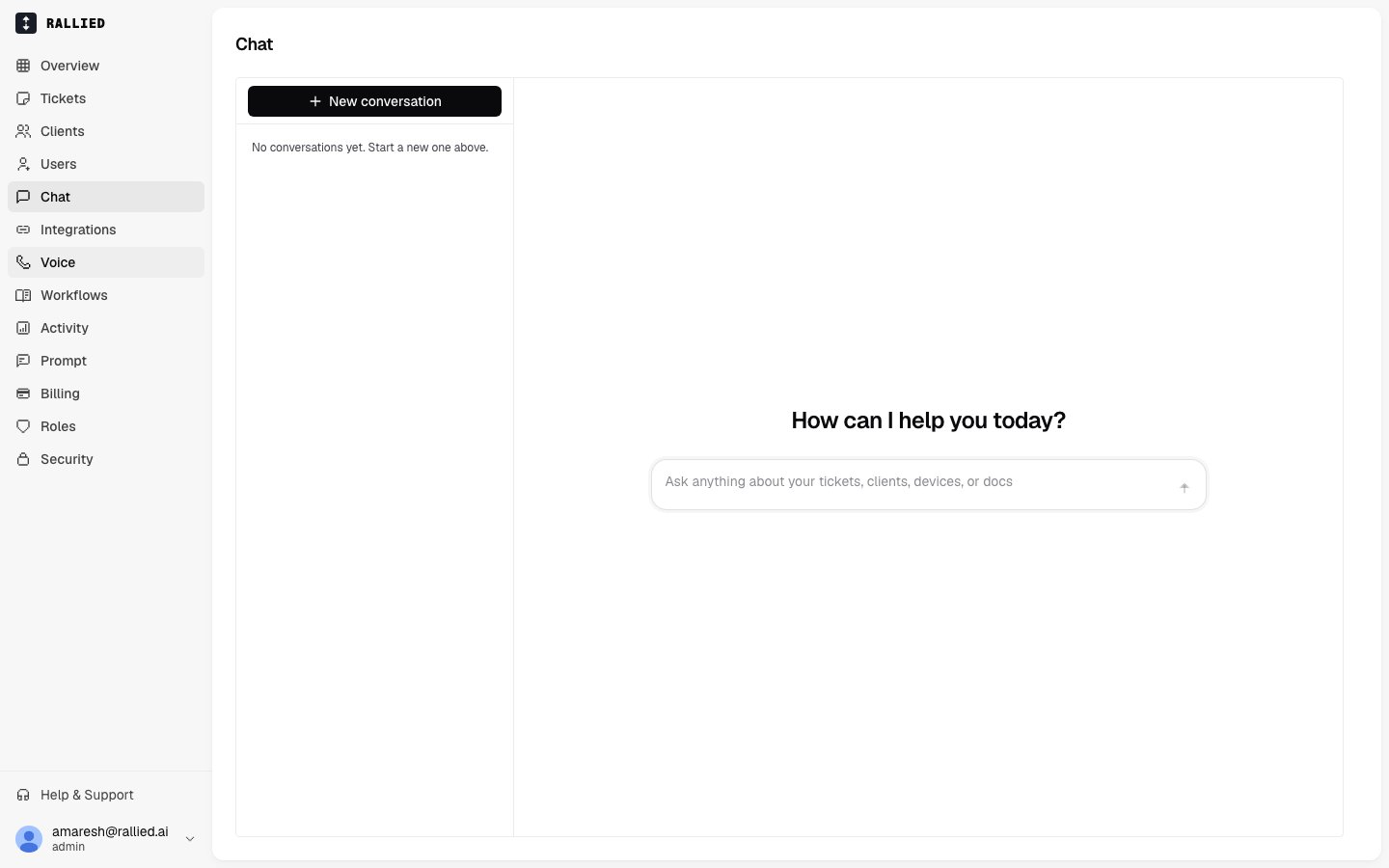
- Ask about a ticket. Paste a ticket number or subject, and the agent pulls the ticket, its notes and the customer context.
- Kick off an action, such as “reset Jane’s password”, “grant Alex access to the finance shared mailbox” or “check whether server-03 is up”. The agent picks the right tool and posts a plan for your approval when needed.
- Work an incident together. Walk through diagnosis step by step, and the agent reports findings as it goes.
- Ask about your setup, such as “which clients don’t have MFA enforced?” or “what workflows do we have for onboarding?”
- Ask for long lists, such as “list every ticket about printer issues in the last 48 hours”. The agent pages through long lists instead of stopping at the first page of results.
- Build reports and make bulk changes across clients, such as “export every RMM device that hasn’t checked in for 30 days as a CSV”. The agent runs a sandboxed script and shares the files as download cards in the chat. See Scripts and reports.
Approving a plan in chat
Rallied applies the same approval settings in chat as everywhere else. When a tool is set to Approval needed, Rallied shows an approval card with the agent’s plan. Click Approve to run it or Deny to stop it. You can also type a reply such as “yes” or “no”. If Rallied can’t tell whether your reply approves or denies, the plan stays pending.Script approvals work differently. A script runs only when you click the card. Typing a reply doesn’t approve it. See Scripts and reports.
Chatting from inside ConnectWise Manage
If you use ConnectWise Manage, you can embed the same chat inside the PSA with ConnectWise’s Hosted API. Your technician opens a ticket, opens the Rallied pod, and asks the agent for help, such as “help me work this”.One-time setup in ConnectWise
1
Open Setup Tables in ConnectWise
In ConnectWise Manage, go to System → Setup Tables and open Hosted API.
2
Add a new Hosted API entry for Rallied
Click New and fill in these fields:
3
Save and reload
Save the entry, then reload ConnectWise Manage. The Rallied pod now shows up in the sidebar of every screen you enabled it on.
What your technicians see
When a technician opens the pod on a ticket, ConnectWise hands Rallied the ticket ID and the current ConnectWise user’s login. From there:- Ticket context loads automatically. The agent knows which ticket you’re on.
- The chat is scoped to your MSP. Rallied checks that the ConnectWise instance the pod was loaded from belongs to your MSP. If someone pasted the pod URL into a different tenant, the pod blocks the chat instead of leaking anything across tenants.
- Approvals happen inline, with the same plan-and-approve flow as the rest of Rallied.
When the pod can’t open
You may see one of these instead of a chat:Credits
Rallied charges each chat message once, at the level of work the agent did for it. Some messages are free, such as asking about your balance. See Credits & Billing for the levels and the full list of free cases.Related
- Scripts and reports: run a script across every client and approve bulk changes once.
- Approval settings: decide which actions the agent runs on its own.
- Workflows: write playbooks that run automatically on matching tickets.
- Credits & Billing: how chat messages are charged.