
Overview
The HaloPSA integration is a three-part setup that runs in parallel between the HaloPSA admin UI and Rallied. Keep both tabs open while you work through it.- In HaloPSA — create a dedicated API agent, register an Application against that agent, and copy the Client ID + Client Secret.
- In Rallied — open the HaloPSA integration form, paste the credentials, and save.
- In Rallied (post-connect) — select which HaloPSA clients to import as Rallied clients. Each imported client is provisioned with an agent automatically.
Section 1 — Create the API agent in HaloPSA
1
Sign in to HaloPSA as an administrator
Use an account with Administrator rights.
2
Open the Agents list
Go to Configuration → Teams & Agents → Agents and click New.
3
Configure the new agent
Fill in the following (leave other fields at their defaults):
4
Save the agent
Click Save.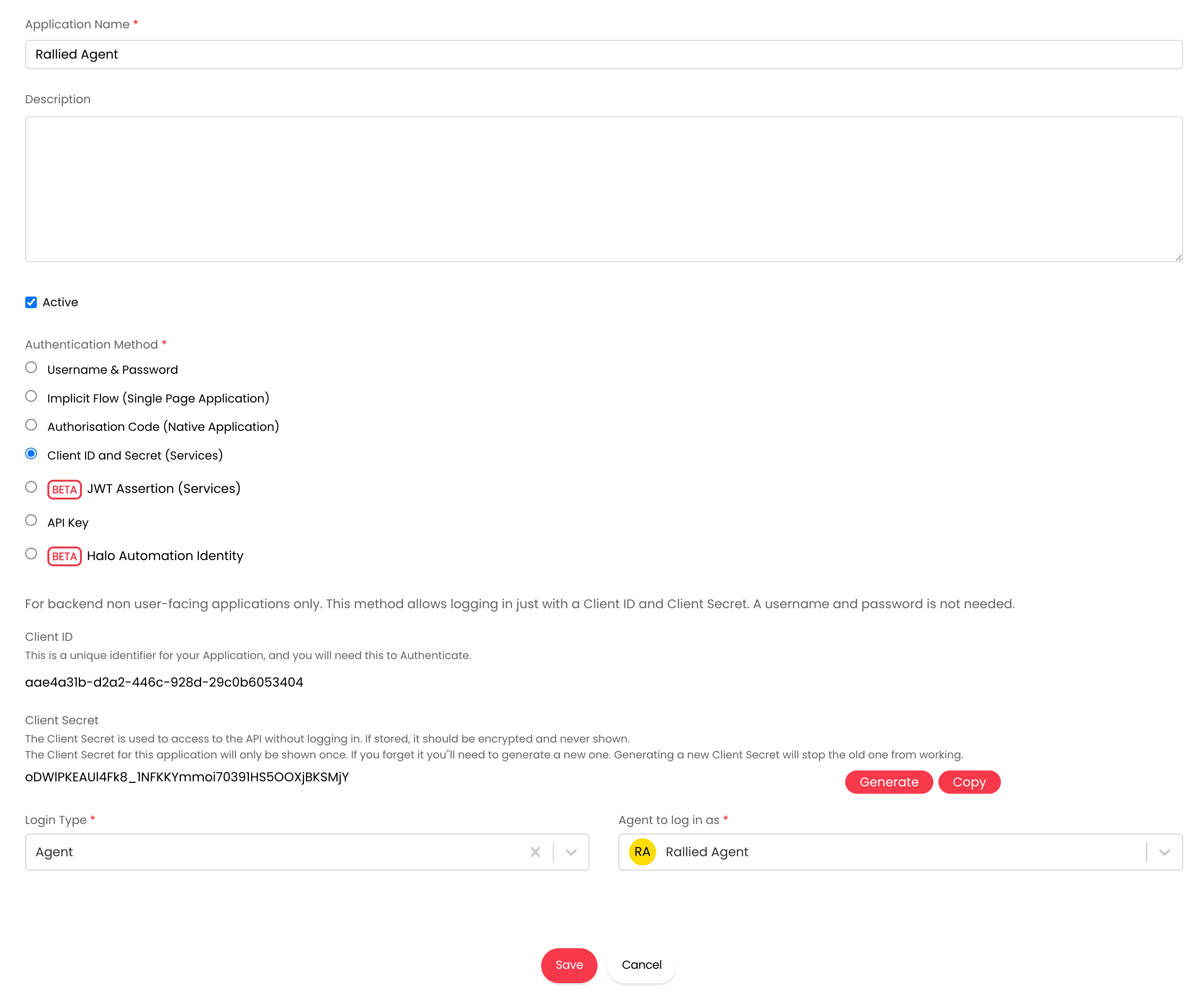
Section 2 — Register the Application
The Application is what Rallied uses to call the HaloPSA API.1
Open the Applications list
Go to Configuration → Integrations → HaloPSA API → Applications → View Applications and click New.
2
Configure the application
Fill in: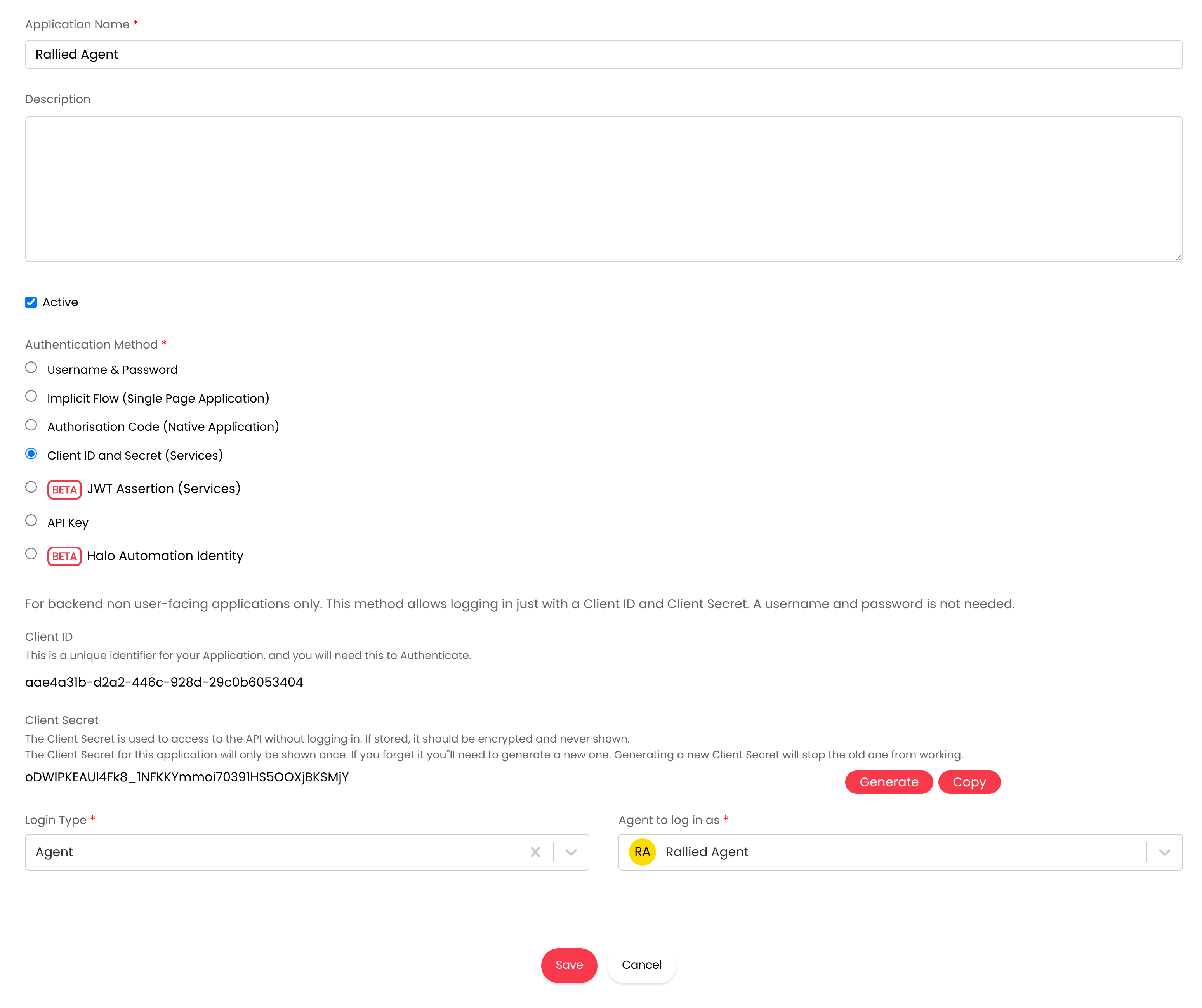
HaloPSA generates a Client ID and Client Secret. Copy both; you’ll paste them into Rallied in Section 3. The secret is only displayed once.
3
Set the application permissions
On the Permissions tab, enable the three scopes Rallied needs: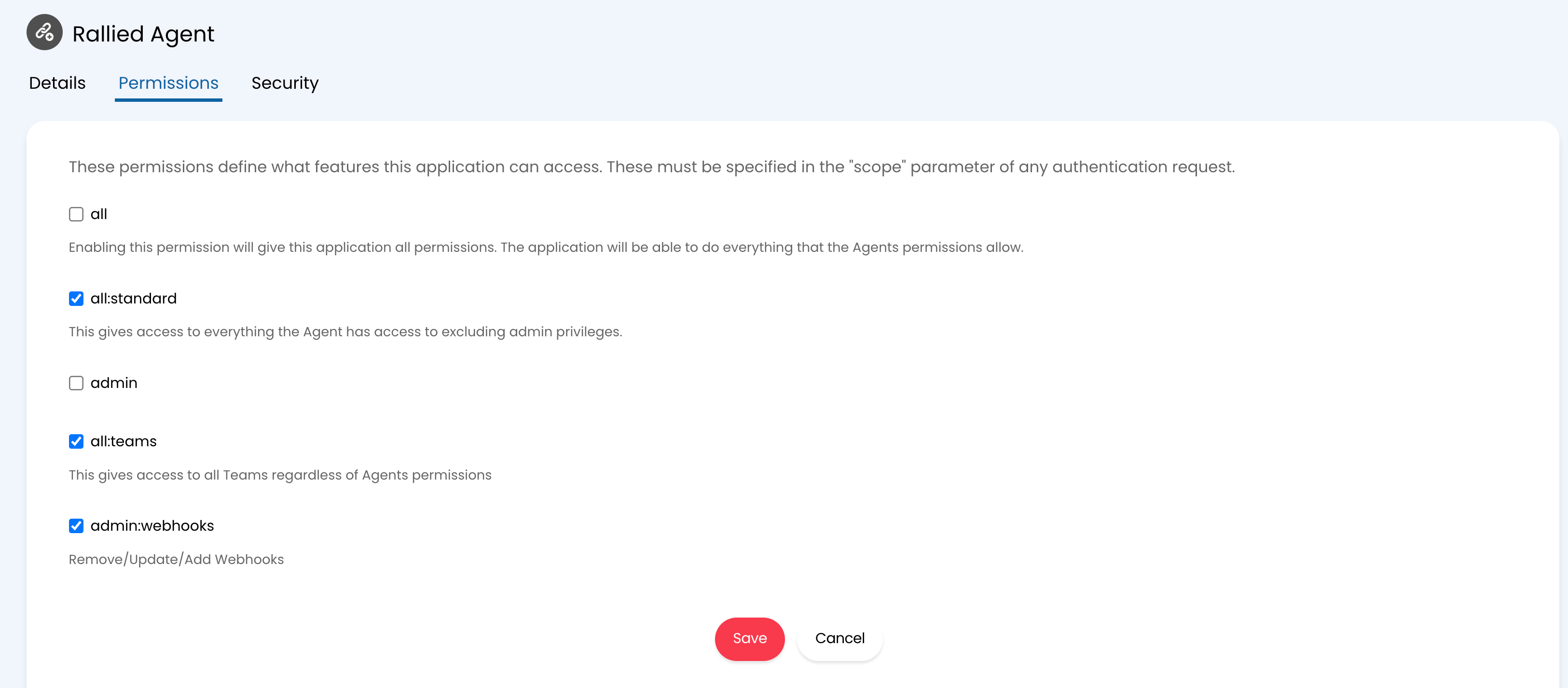
Leave
all and admin unchecked — all:standard plus admin:webhooks is the least-privileged set that lets the integration work.4
Save the application
Click Save. Leave the page open — you still need the Client ID and Client Secret in the next section.
Section 3 — Connect HaloPSA in Rallied
1
Open Integrations
In Rallied, go to Settings → Integrations.
2
Connect HaloPSA
Find the HaloPSA card and click Connect. A credentials form appears.
3
Enter your HaloPSA details
Fill in: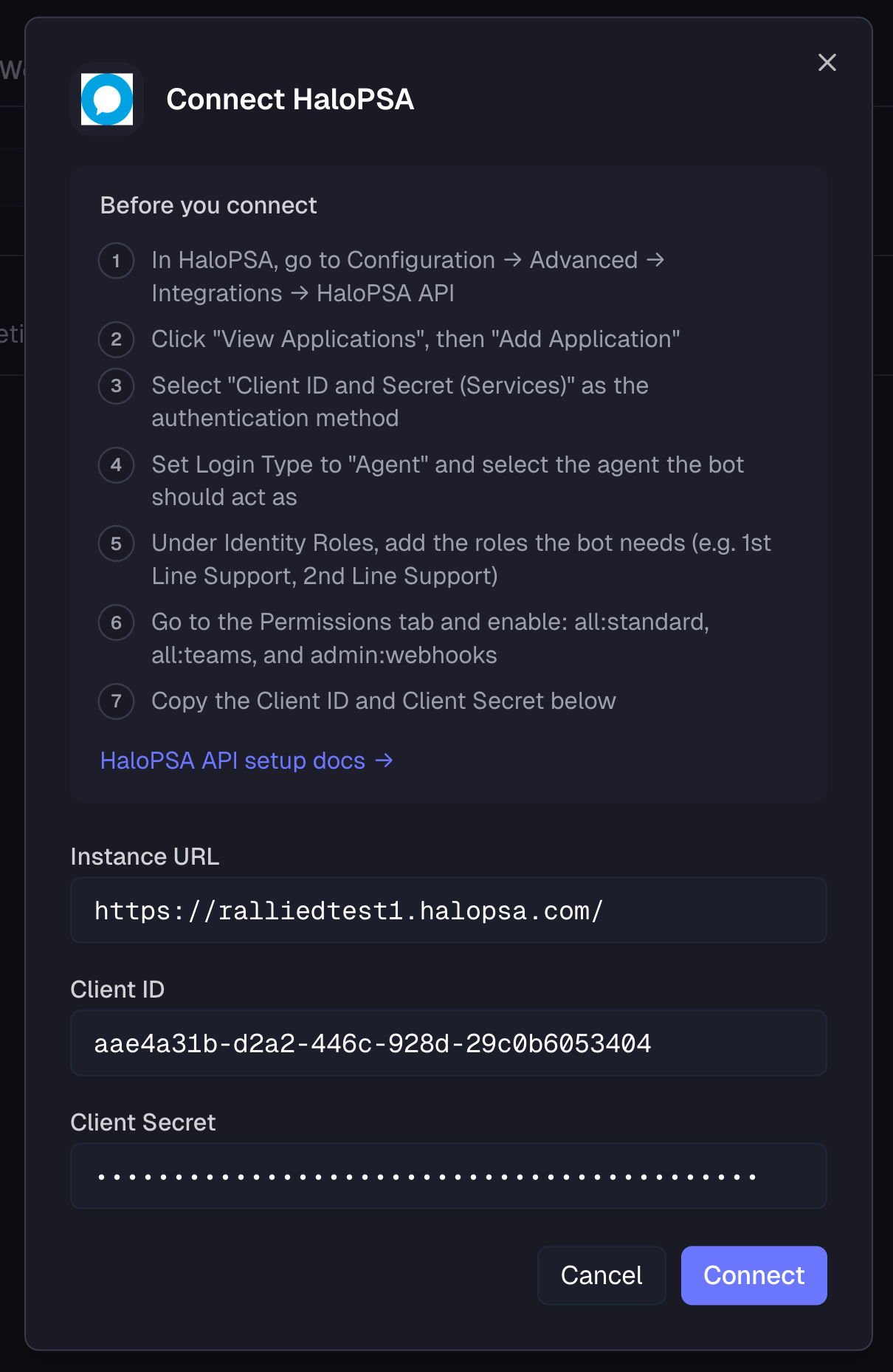
- Instance URL — your HaloPSA tenant URL, e.g.
https://yourcompany.halopsa.com(no trailing slash; HTTPS required) - Client ID — from the Application in Section 2
- Client Secret — from the Application in Section 2
4
Select clients to import
After saving, the Select clients to import post-connect step opens. Pick which HaloPSA clients you want to manage with Rallied. Each one is imported with an agent provisioned automatically.
Rallied registers the webhook in HaloPSA for you and subscribes it to new and updated ticket events. You don’t need to add the webhook or notifications manually.
What happens when a ticket comes in
When a new or updated ticket lands in HaloPSA, the agent picks it up right away, matches it to the right client, and starts working with the full ticket context: subject, requester, priority, and prior notes. If you’ve set up workflows that match the incoming ticket, the agent follows your instructions for that scenario.Sensitive tickets and identity verification
If a ticket is classified as sensitive (a password or MFA reset, for example) and you have a verification provider like Traceless connected, Rallied sends the requester an identity verification challenge before the agent starts work. The agent pauses until the verification resolves, then posts an internal note on the ticket with the outcome.Routing tickets from the catch-all client
HaloPSA files email from unregistered addresses under a default client, usually named “Unknown”. Tickets landing there have no client context, so a technician normally reassigns them by hand. If you have the Microsoft 365 integration connected, Rallied routes these tickets automatically. When a ticket arrives under the catch-all client, Rallied checks the sender’s email domain against your clients’ Microsoft 365 tenants. If exactly one client’s tenant has verified that domain, Rallied routes the ticket to that client and the agent works it with that client’s context. The routing is deterministic and fails closed. A ticket stays on the catch-all client when:- The sender’s domain is a public email domain (gmail.com, outlook.com, and similar)
- No client’s tenant has verified the domain
- More than one client’s tenant has verified the domain
Naming your catch-all client
Rallied recognizes HaloPSA’s default catch-all names automatically: “Unknown”, “Unassigned”, “Unallocated”, and “Catch-all”. If your catch-all client has a different name, tell Rallied its ID:- In Rallied, go to Settings → Integrations and open the HaloPSA detail page.
- Under Catch-all client IDs, enter the HaloPSA client ID(s) of your catch-all client(s), separated by commas (for example
1, 42). - Click Save.
Approving an action without leaving HaloPSA
When the agent’s plan needs a technician’s sign-off, it creates a HaloPSA action on the ticket describing what it wants to do. Your team approves or denies from HaloPSA. Only the ticket’s assigned agent can approve. Replies from anyone else are treated as normal messages and don’t affect the approval.Replying to the agent on a ticket
Once the agent has started working a ticket, any new note on that ticket is forwarded to it as a follow-up in the same session. That covers both internal notes from your technicians and customer replies from end users, so a tech can drop a hint mid-investigation, an end user can answer the agent’s clarifying question, and the agent picks up where it left off — no re-triggering needed. Each forwarded note is labeled with its source (internal note or customer reply), so the agent always knows who it’s talking to. Two things are never forwarded:- The agent’s own notes. Only notes from an identified human author reach the agent, so it never reacts to itself.
- Replies on tickets the agent never worked. Commenting on an old ticket won’t silently wake an agent.
Testing the end-to-end setup
1
Create a test ticket in HaloPSA
Click New Ticket at the top of any HaloPSA page. Pick any ticket type, assign it to an imported client, and fill in a short subject and description.
2
Confirm the webhook fired
Go to Configuration → Integrations → Webhooks, open the
Rallied (...) webhook, and check the Deliveries tab. You should see a successful delivery for the new ticket.3
Confirm the agent picked it up
In Rallied, open Activity (or the imported client’s detail page). The new ticket should appear with the agent’s diagnosis already in progress. If the operating mode is Plan, the agent posts an internal note with its plan; in Execute mode it begins executing read-only steps and requests approval for write actions.
- The Instance URL has no trailing slash and uses HTTPS
- The Client Secret hasn’t been regenerated since you saved it in Rallied
- The client linked to the test ticket was imported in Section 3